SIM Card Management
Note:
- All Voice related options and use cases are only applicable and available in case Voice Services are licensed on the CMP instance.
- All dates and timestamps shown in the SIM Cards module of the Enterprise Portal are displayed in the CSP Time Zone, which may differ from UTC.
- Processes related to changes of the day (midnight) and Billing Cycle (e.g. change of Billing Status, change of Price Plan) are performed according to the CSP Time Zone.
Overview
A subscriber identity module or subscriber identification module (SIM), widely known as a SIM Card, is an integrated circuit that is intended to store the securely: IMSI number and its related key, ICCID, security authentication and ciphering information, temporary information related to the local network, a list of APN Services and two passwords: PIN and PUK for PIN unlocking.
The Enterprise Portal monitors and manages the SIM Cards of Accounts and Sub-Accounts. It is possible to:
- Change SIM Card Price Plans
- Assign SIM Card(s) to different levels of the Account Hierarchy
- Set Billing Status
- Set the Network Status
- Set the Logistic Status
- Send SMS to a SIM Card(s)
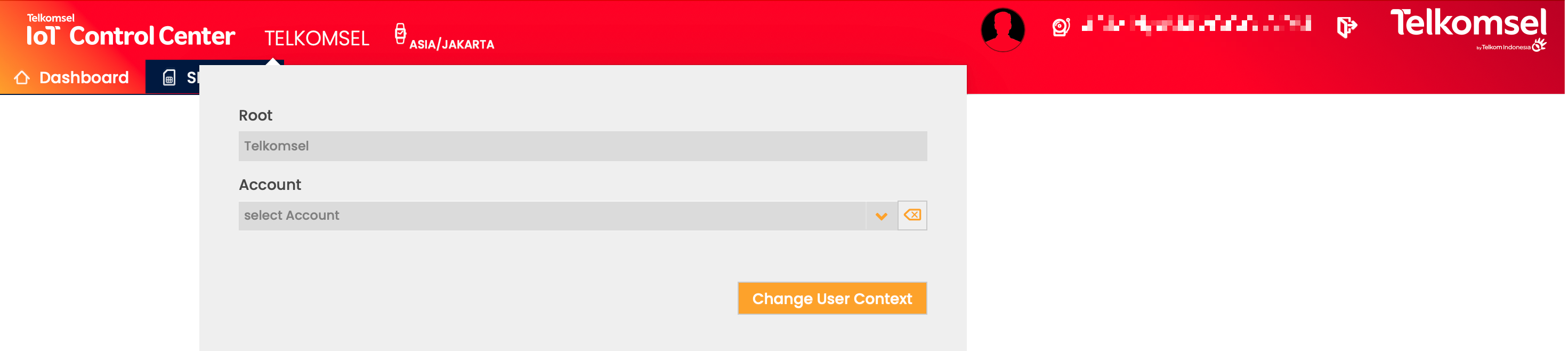
Modify the SIM View using the Context Switch
The SIM Cards displayed in the SIM Grid can be restricted by selecting a different context in the organization hierarchy. Only the SIM Cards of the selected level and those below are visible.
CMP supports two types of context switching: horizontal and vertical switching.
- Horizontal switching allows the User to change their active context to another of their own contexts (i.e., another context to which they have access), thereby switching access to objects belonging to the target context, provided the target context's validated Effective User Rights do not restrict it. In the event of horizontal context switching, the User's Effective User Rights are automatically recalculated based on the target context.
- Vertical switching allows the User to change their active context to a context one level below their own context(s), thereby switching access to objects belonging to the target context, provided the Effective User Rights carried over from the higher source context do not restrict it. Note that in the event of vertical context switching, the User's Effective User Rights are not recalculated.
In the context switch, CMP lists all Parent Accounts alphabetically. If any Sub-Accounts have been created for any Accounts, a list of those Sub-Accounts is displayed below the relevant Account.
Suspended Accounts
Active and Suspended Accounts are both visible in the Enterprise Portal, however, only Admin Users can access suspended Accounts.
Note: Suspended Accounts are distinguished from active Accounts by a *SUSPENDED* suffix.
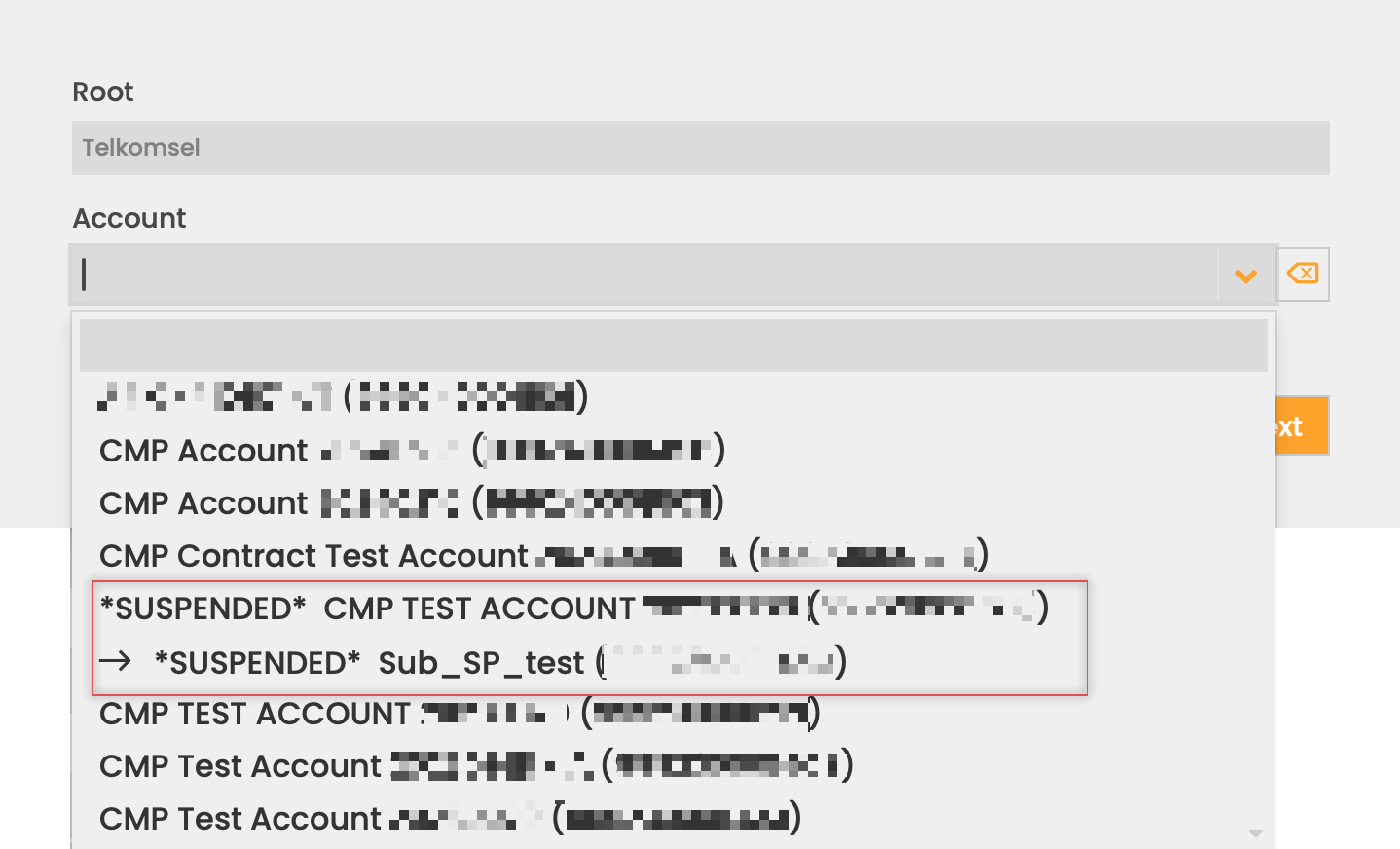

Account Users cannot access Suspended Accounts and will be presented with an error message when trying to access suspended Accounts.

Furthermore, in case the Account User doesn't have access to at least one active Account (i.e. an Account in ACCOUNT status) the User's access to the Enterprise Portal will be completely blocked.
Searching for SIM Cards
Users can populate the SIM Grid with a single or multiple specific SIM Cards using the SIM Cards search and filter menu bar.

Search for SIM Cards Using Key Identifiers
The SIM key identifiers, such as ICCID, IMSI, MSISDN, or EID*, can be used to search for SIM Cards in Value, List, or Range search modes.
*Note that EID is only available in case the eSIM feature is licensed on the CMP instance.
To search for SIM Cards using key identifiers:
- Select one of the identifiers from the Search dropdown list.
- Select the search mode from the dropdown on the left of the selected identifier.
- Value Search
 allows Users to search for SIM Cards by providing specific whole or partial values.
 - List Search
 allows Users to search for multiple SIM Cards by providing multiple values of the selected type. Partial values are not supported.
 - Range Search
 allows Users to search for a range of SIM Cards by defining the start and end of the range.
- Value Search
- Enter the search criteria values.
Note that the input section is different for each search mode. - Click on the search
 icon.
icon.
The inserted search criteria can be easily removed by clicking on the Clear search  icon.
icon.
Search for SIM Cards Using Generic Text Search
The main search field can be used to enter any text or number, and the SIM Grid will show all SIMs with similar information. CMP will search for the defined values in the following fields:
- Active and Base Price Plan,
- Device,
- Roaming Profile,
- APN Group,
- APN & Static IP,
- Data Session IMEI,
- Service Profile, and
- Custom Attributes*.
*If the feature to display Custom Attributes in the SIM Grid is enabled, the generic search field also includes Custom Attribute values in the search process.
Note that using the generic search field to search for attributes covered by dedicated filters is not possible. The only exception is the Active Price Plan, as the related filter is not available on the Root level.
The inserted search criteria can be easily removed by clicking on the Clear search icon.
Using Filter
Note:
By unchecking the show Filters checkbox, filters can be hidden if they are not needed.
Accounts with many SIM Cards may apply filters to reduce the number of SIM Cards seen in the SIM Grid.
The dropdown list of the selected filter can be opened to view the values for each filter, and Users can also perform a value search.
Filters:
- Type (Only available if the eSIM feature is enabled on the CMP instance.)
- Billing Status
- Data Session
- Active Price Plan (Only available on Account and Customer level.)
- RAT Type
- Account (on Root level)/Customer (on Account level)
- Tag
- SIM Provider (Only available if configured accordingly on CSP level.)
The inserted filter criteria can be easily removed by clicking on the Clear search icon.
Stored Queries
Custom filter combinations i.e. queries can be saved and called up for later use from the Stored Queries dropdown list. Stored Queries are created at the Context level rather than the User level, which means that other Users with access to the same Context can see and use queries saved by other Users.
Note that in addition to single filter values, ICCID, IMSI, or MSISDN Lists can be saved as part of a Stored Query.

To save a custom query:
- Enter the desired filter values.
- Click the Save
 icon.
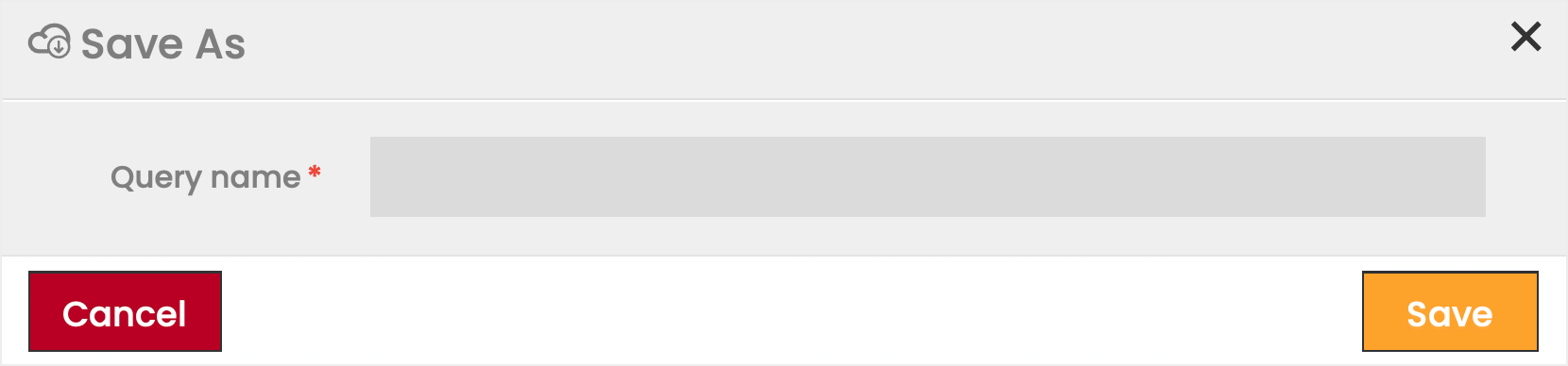
icon. - Enter a name for the query.
- Click the Save button to store the custom query.
Select All SIM Card
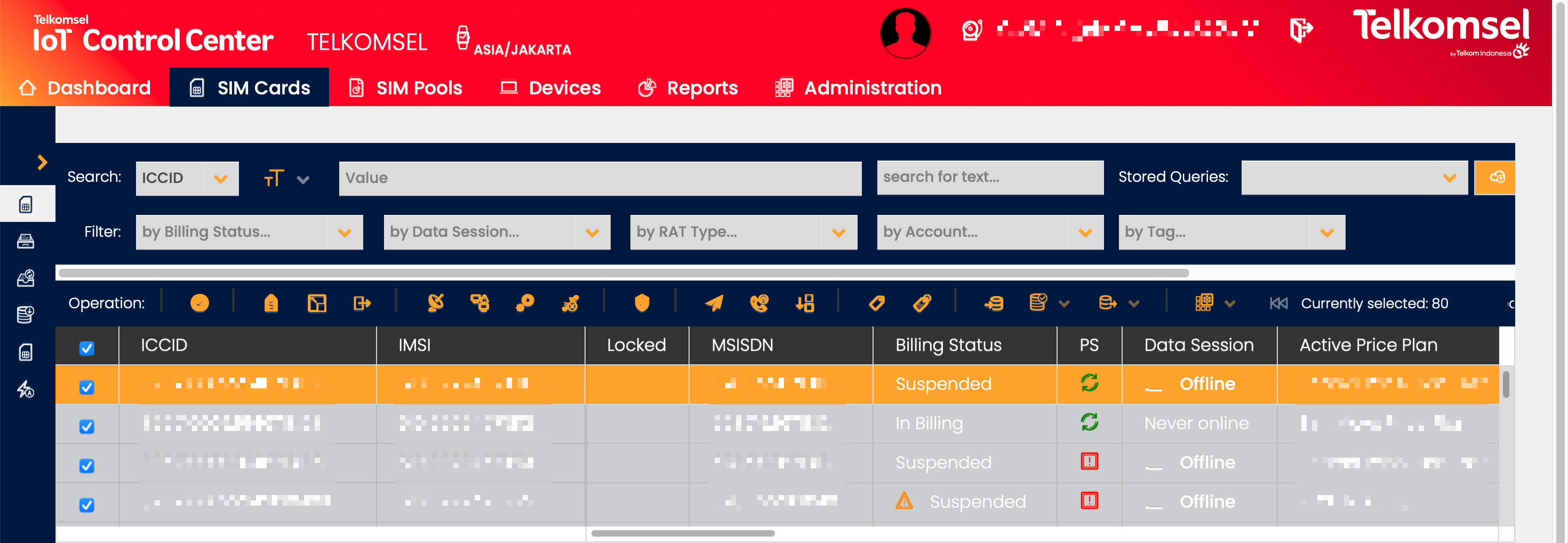
Users can select all of the SIM Cards that are currently displayed in the Grid at once by selecting the uppermost checkbox on the SIM Grid. This means that, for instance, if the uppermost checkbox is checked and the page size is set to 500 and there are 100.000 SIM Cards assigned to the Account, the 500 SIM Cards that are displayed in the grid will be selected.
Keep in mind that changing the page will remove the selection.
The SIM Grid
In the SIM Cards module, the Object Grid is referred to as the SIM Grid.
Note:
The SIM Grid columns may have a different order in your Account.
The columns of the SIM Grid can be divided into the following areas:
- Identifying elements
- Billing Status Information
- Data Session
- Price Plan Information
- Service Information
- Activation Date
- Groups Information
- Information about Devices and where they are installed
- APN Information
- Custom Attributes (only if the corresponding feature is enabled - for details see the section Custom Attributes)
Click and hold on the edge of a column heading to adjust the width.
Identifying elements
EID | Unique identifier of the eSIM. By clicking on the EID, the grid will search and show all the eSIM Profiles linked to the EID. Note: The EID column is only populated if the ICCID is of Type eSIM Profile. |
|---|---|
ICCID | ICCID is a unique identification number that is assigned to each SIM Card by the manufacturer. |
Type | Type of the SIM. Available values are: SIM, eSIM, eSIM Profile. Note: Only available if the eSIM feature is enabled on the CMP instance. |
IMSI | IMSI is a unique identification number that is assigned to each SIM Card by the mobile network operator. |
MSISDN | MSISDN is a unique identifier assigned to a mobile device to identify it on a mobile network. The MSISDN includes the country code, network code, and the subscriber number, and it can be used to make and receive voice calls and SMS messages. |
SIM Provider | The Network Provider of the SIM Card. Note: Only available if configured accordingly on CSP level. |
Billing Status Information
Billing Status: Once the SIM is in Status Active and assigned to an Account the Billing Status is visible to users in the Enterprise Portal.
The following values are available:
- Customer Inventory: This status indicates that the SIM is already assigned to an Account / Customer, but the subscription is not yet active. During the creation of a Customer, the contract will either be set to In Testing or Ready for Billing Activation depending on how it is marked in the contract.
- In Testing: In case there has been a test allowance (e.g., free test data volume of 1024 kB) agreed, the SIM will stay in this Status until the test allowance has been consumed. A user with the necessary access rights can initiate charging by manually setting to In Billing before the test allowance limit has been reached
- Billing Ready: This status indicates that the SIM Card has an active Customer contract. The SIM is able to connect to the Network but billing is stopped. With the first traffic event, the SIM will be set to In Billing, and agreed fees are applied. In case there are no traffic events during a Billing Cycle (which would set the SIM to In Billing), no subscription nor any usage fees for this Billing Cycle will be charged.
- In Billing: Once the SIM Card has been set to In Billing each consumption will be charged according to the assigned tariff model. In the case that the SIM is no longer used for connectivity services, the contract can be terminated. This will set the SIM to the status Retired.
- Suspended: To suspend a SIM means to interrupt the charging until it is either resumed, or the SIM gets retired. Accordingly, the suspension period will be taken into account during the billing, following agreed business rules (i.e., a contract with monthly dues will be billed prorated).
Usually, a suspended SIM is still allowed to register to the Network, but all Network services are disabled ("all barred"). However, using a dedicated Suspend Service Profile, some dedicated services could be still allowed (i.e., SMS MT to still receive Short Messages).
In case the related Account got configured for Retrospective rating, the above said proration of the MRC will only apply for the event of a SIM moving into suspend and within the same Billing Cycle. If a SIM moves into suspend and gets resumed within the same Billing Cycle, the normal Retrospective rules apply and the last Price Plan at the end of the Billing Cycle gets charged for the full duration (incl. the suspend period). Only if the SIM stays in suspend beyond the same Billing Cycle, the Retrospective rating rule gets interrupted and the MRC will only be charged until suspend day and the suspend duration (until the end of the Billing Cycle) will not be charged.
Once the SIM gets resumed the following month, the Retrospective rating rule applies again and the full MRC of the last Price Plan at the end of this Billing Cycle will be charged (incl. the suspend period within that Billing Cycle). - Retired: Means the SIM has been terminated by the Account. A Retired SIM is not allowed to register on the network. A retired SIM can be manually reactivated, but any test allowance will not be allowed a second time. Activation of a retired device will also require a device reboot.
In case the Billing Status is temporary  it is indicated in the SIM Grid. (Only applicable to Suspended.)
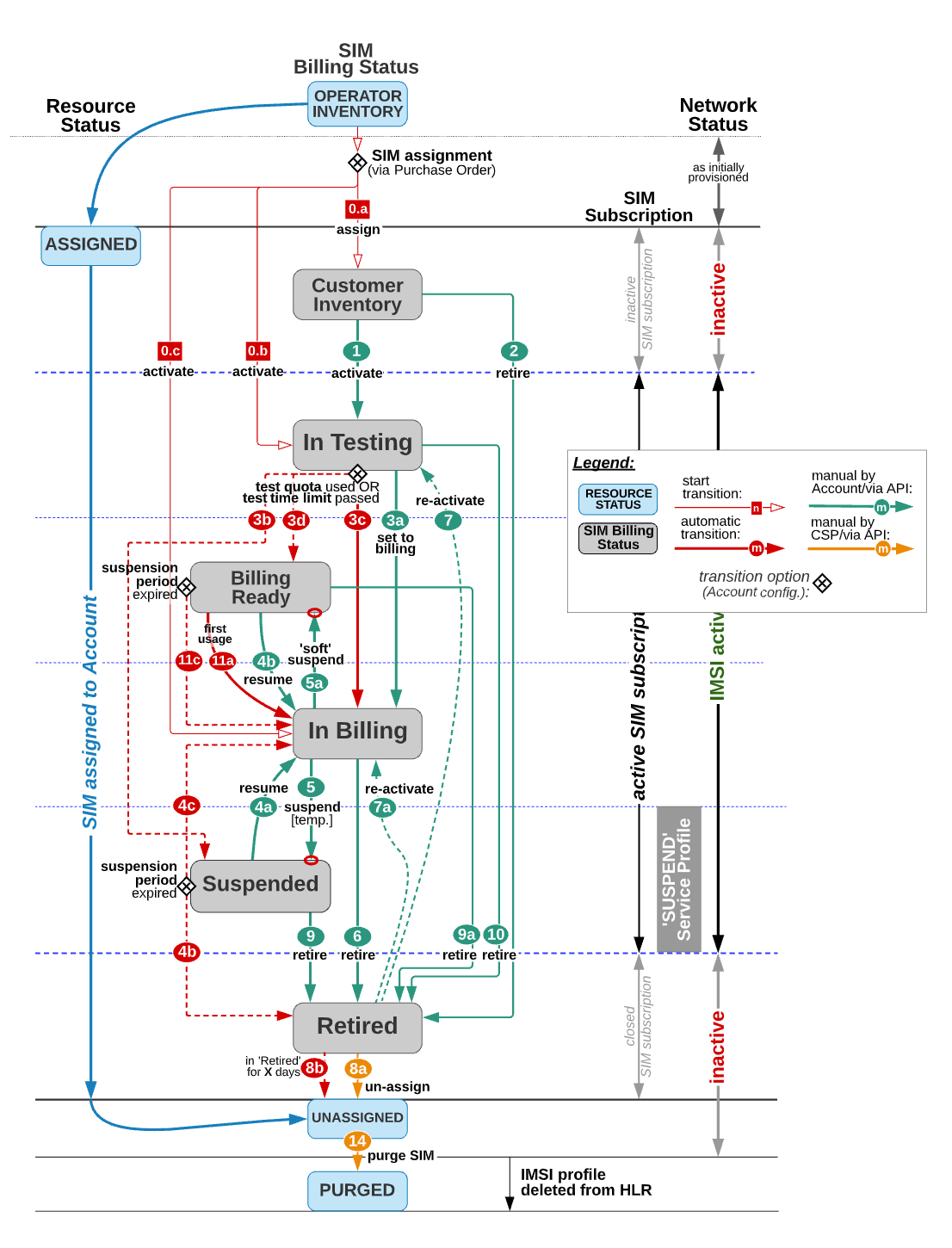
The following diagram shows the described Billing Statuses and their possible transitions. Red arrows indicate automatic transitions, and green arrows mark transitions that can be triggered by Billing Manager and Enterprise Portal users with the appropriate rights.
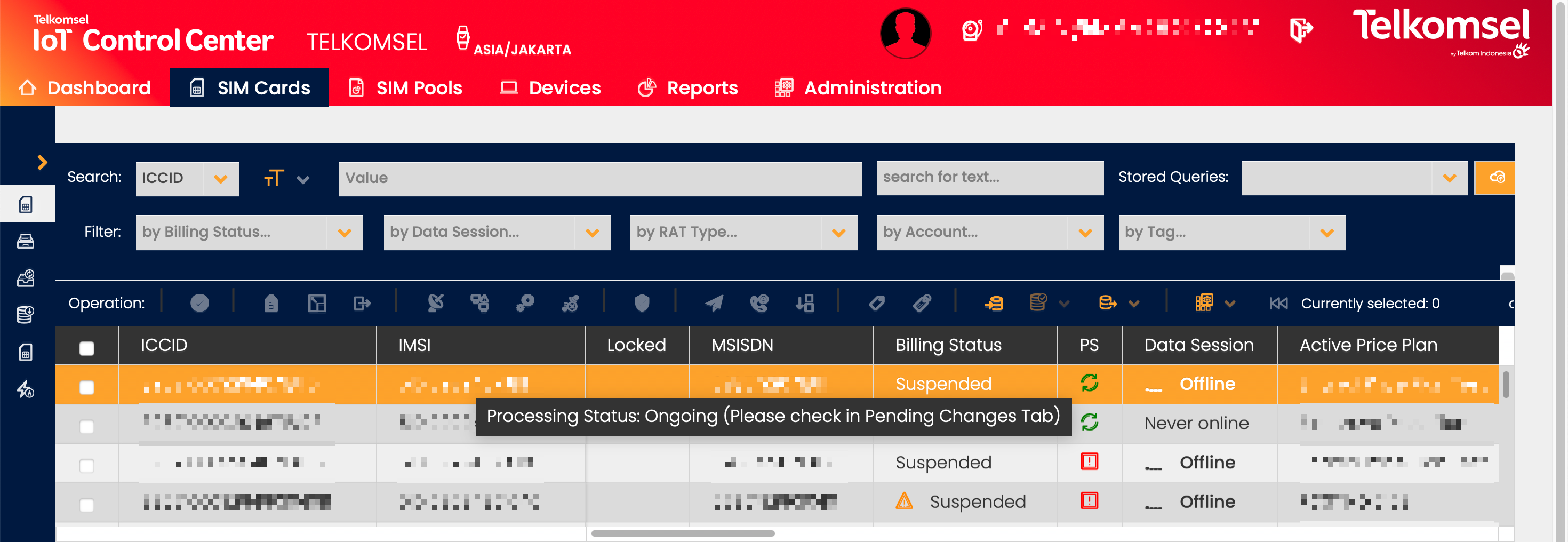
Processing Status: The PS (Processing Status) column informs Users about the status of various asynchronous processes, e.g. the Billing Status change.
 indicates that the change process is ongoing, and
 indicates that the change process has failed.
- In case there is no currently ongoing or failed process, the field is left empty.
More information is accessible on the Pending Changes tab, which may be easily accessed by clicking on the icon in the PS column.
Data Session
Data Session: A session is a series of interactions between two communication endpoints that occur during the span of a single connection. Typically, one endpoint requests a connection with another specified endpoint, and if that endpoint replies by agreeing to the connection, the endpoints take turns exchanging commands and data ("talking to each other"). The session begins when the connection is established at both ends and terminates when the connection is ended.
The column provides information on the most recent data session of the SIM (in case there was one). Available values:
- Online
- Offline
- Rejected*
- Never online
*The Reject Reason is shown in the SIM Details split screen if the SIM Cards Data Session is Blocked.
Data Session IMEI: The column displays the IMEI used on the last data session of the SIM Card.
- The value of the field is only displayed after the first data session, before that the field is left empty.
- The column only displays IMEI information recorded for online data sessions and not for SMS and voice, additionally, offline usage information (also for data) is not considered as a source for IMEI information.
Service Information
RAT Type:
- 2G - Phone conversations are digitally encrypted. 2G technologies enable network operators to provide data services such as SMS (Short Message Service) and MMS (Multimedia Message Service).
- 3G - Provides an information transfer rate of at least 200 kbit/s. Later 3G releases provide mobile broadband access of several Mbit/s to smartphones and mobile modems in laptop computers. This ensures it can be applied to wireless voice telephony, mobile Internet access, fixed wireless Internet access, video calls, and mobile TV technologies.
- 4G - Provides mobile broadband Internet access to wireless modems, smartphones, and other mobile devices. Potential and current applications include amended mobile web access, IP telephony, gaming services, high-definition mobile TV, video conferencing, 3D television, and cloud computing.
Data Volume: The total consumption of data in the current Billing Cycle, up to the latest session update.
Note:
The CMP will support the use of eSIMs and Multi-IMSI solutions in the future. In these cases, the sum of the data usage for all logical profiles is displayed for the single physical SIM Card.
SMS MO/MT Count: This column shows the number of sent (MO) and received (MT) SMS during the current Billing Cycle.
Note:
SMS Count does not reflect whether SMS MT is charged. Refer to the SIM's active Price Plan for this information.
Voice MO/MT Duration: This column shows the duration of Voice MO/MT calls during the current Billing Cycle.
EDR: Clicking the  icon in the EDR column allows triggering the EDRs per SIM query by redirecting the User to the EDRs per SIM Card tab under the Reports menu. For a detailed description see the EDRs per SIM Card section of the Reports & Usage Queries page.
Country: SIM Location Country where the SIM's last data session started or SMS was sent/received.
Price Plan Information
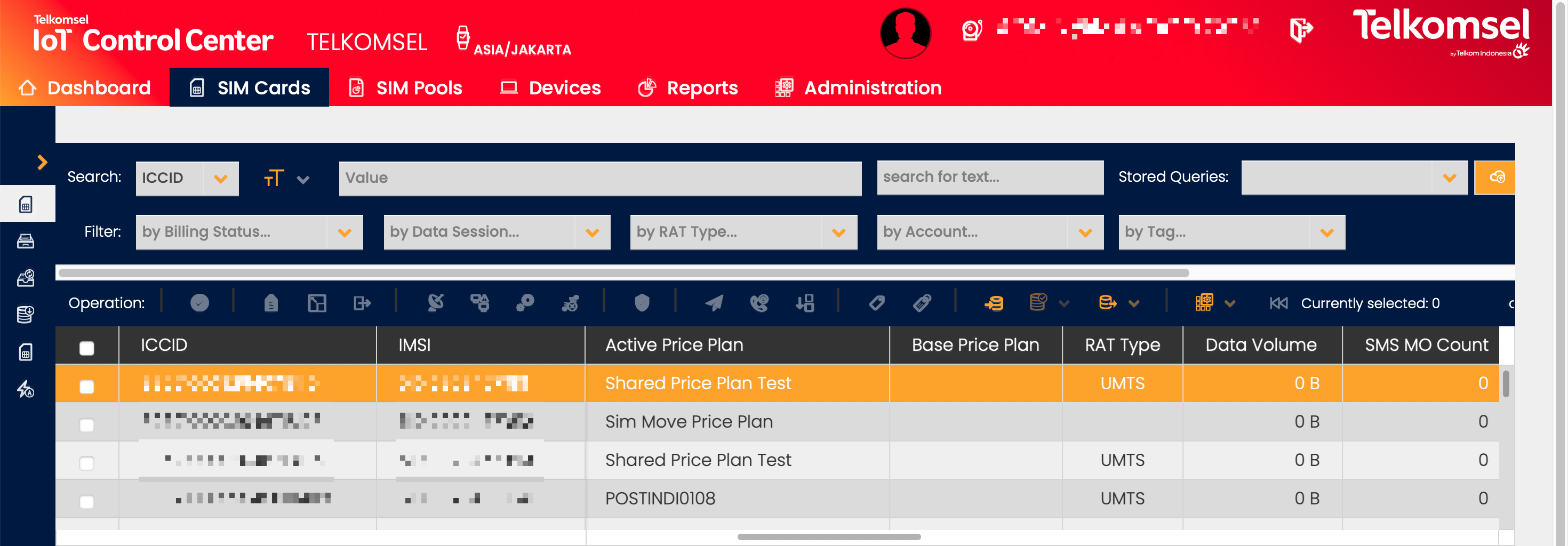
Active Price Plan: The Price Plan currently assigned to the SIM.
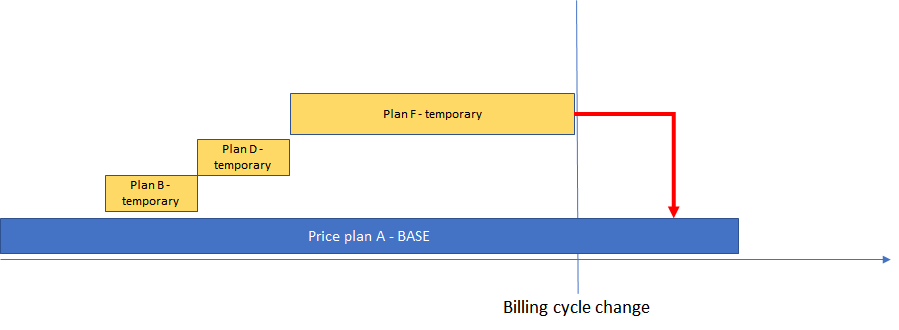
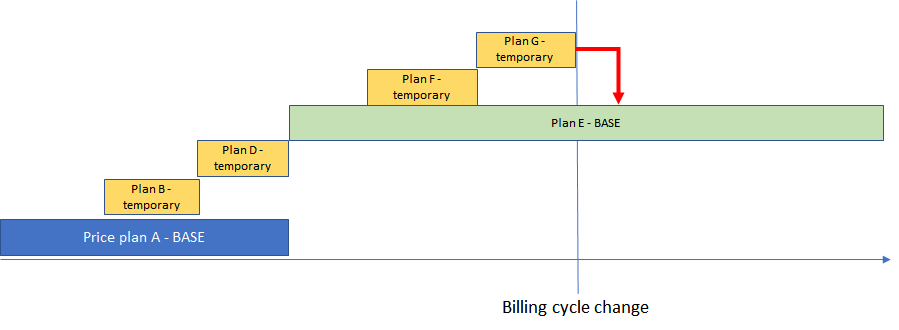
- Initial Price Plan is the Price Plan which is assigned to the SIM card when the SIM is first assigned to an Account. If the SIM Price Plan changes to a Temporary Price Plan the Base Price Plan is no longer Initial and the normal Mid-Cycle Price Plan Change rules apply.
- Permanent Price Plan is not affected by the change of the Billing Cycle.
- Temporary Price Plan is only effective until the end of the Billing Cycle and will automatically change back to the Base Price Plan with the next Billing Cycle. In case the Active Price Plan is temporary it is indicated in the SIM Grid. Only Postpaid Price Plans are allowed as Temporary Price Plan.
Base Price Plan: The Base Price Plan is the permanent Price Plan assigned to the SIM and the Price Plan the SIM will move back to at the end of the Billing Cycle.
Note:
If the Active Price Plan is a Permanent one, this field will remain empty.
|
View Price Plan Details
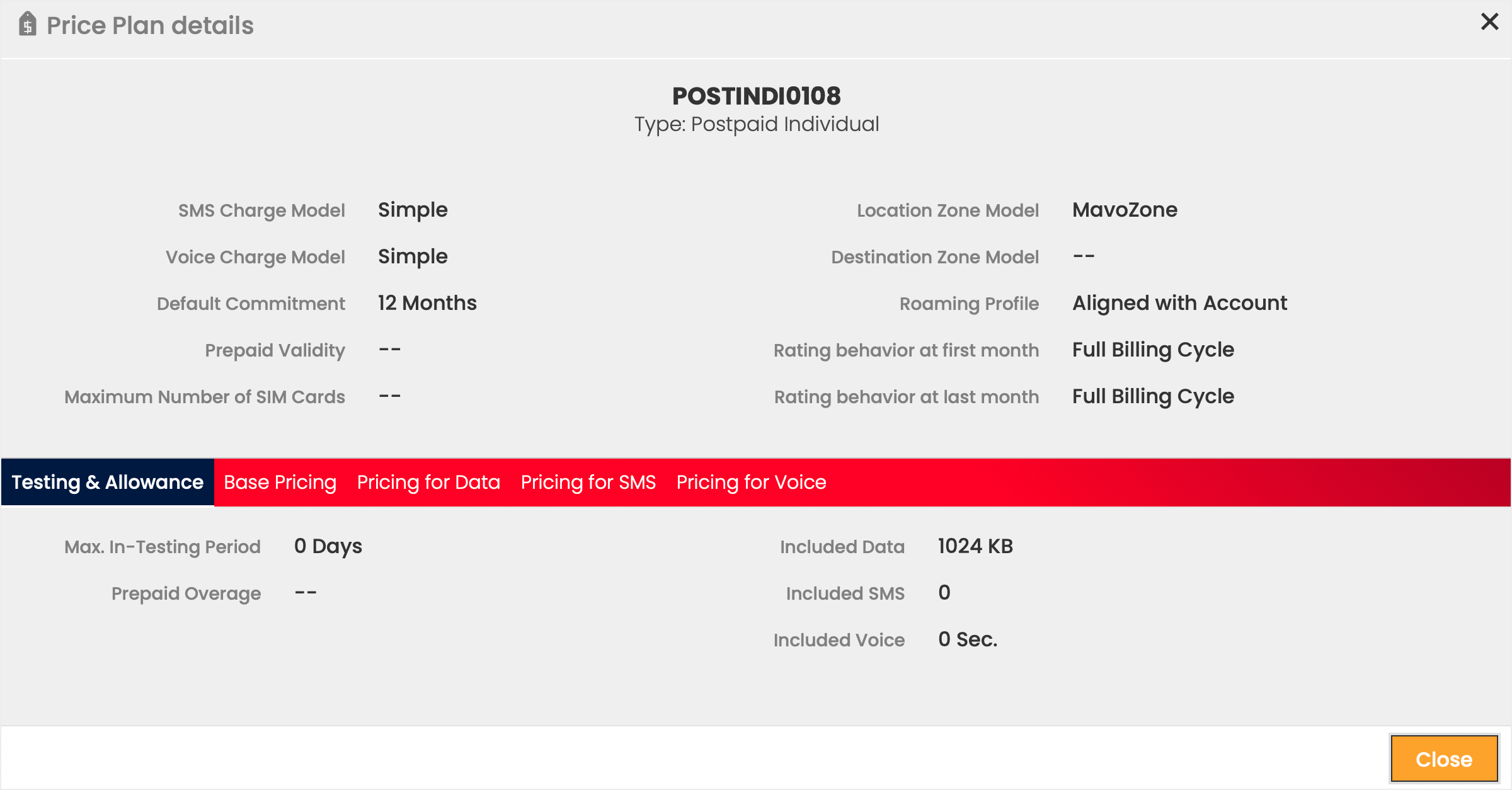
In order to understand the various cost items and create a high-level estimate based on the current or expected usage of the current Billing Cycle, Enterprise Account Users can look into the details of the Price Plans that have been assigned to their Account. To view the Price Plan Details, click on the name of the Price Plan in the Active Price Plan or Base Price Plan column.
Note that the Show Price Plan Details option is only available for Zone Price Plans.
The Price Plan Details view provides Users with an overview of the Price Plan as well as in-depth details on the allowances and rates specified in the selected Price Plan. All information displayed in this section is read-only.
Note that depending on the Price Plan's configuration, the set of tabs displayed in the Price Plan Details may differ (e.g. the Tiering tab is only displayed in case Tiering has been configured in the selected Price Plan).
For further information, please refer to the Price Plan Details section of the user manual.
Account/Customer Information
Account: The Account column shows to which Account the SIM is assigned. A CSP (Root) User can switch the context vertically to the particular Account by clicking on the name of the Account, when displaying more than one Account on CSP context level.
Customer: The Customer column shows to which Customer the SIM is assigned. The column is left empty if the SIM Card is not assigned to a Customer. An Account User can change the context vertically to the particular Customer by clicking on the name of the Customer, when displaying more than one Customer on Account context level.
Note that even if the User is currently in an Account context and has Root level access as an Admin User, changing the context to a Customer context is not supported.
Device Information
Device: Information as to which hardware the SIM Card is assigned.The use of SIM Cards to connect a Device to a server via the Internet is managed under the Devices module.
APN information
APN Group: The APN Group column displays the APN Group currently assigned to the SIM Card.
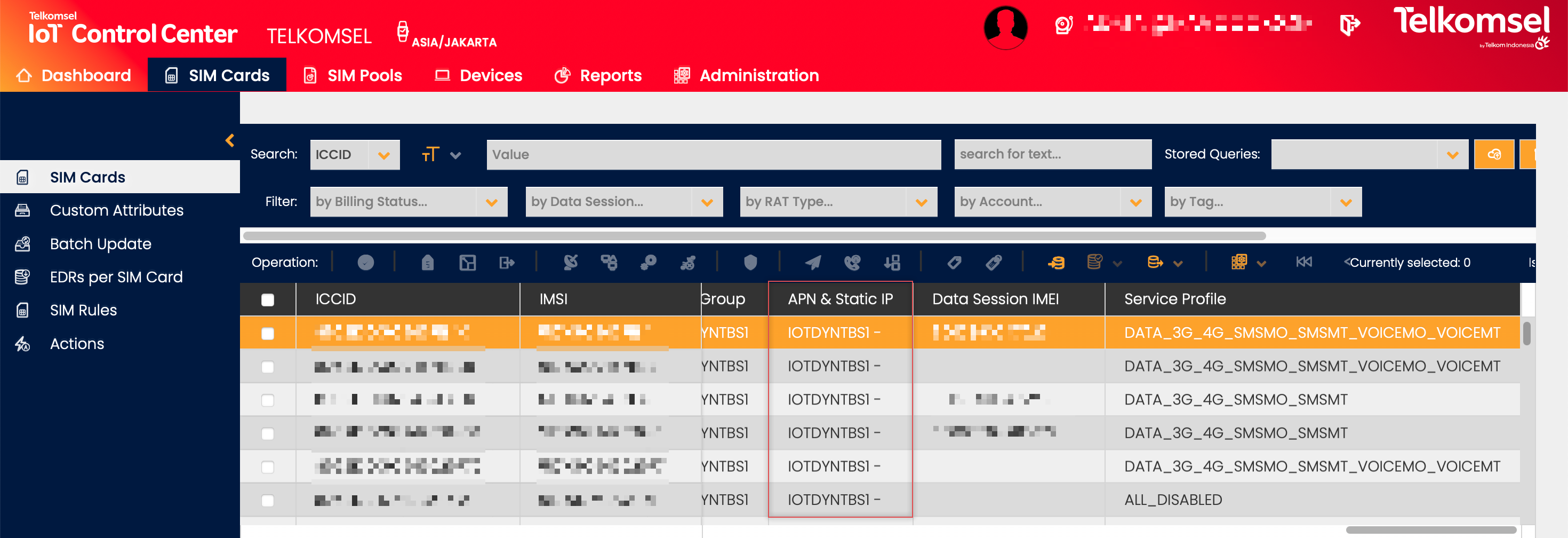
APN & Static IP: By default, the column displays read-only information about the APN(s) and static IP Address(es) of the SIM Card. APN information is as well displayed for non-static APNs, in that case, the position of the IP Address is marked with "-" to indicate that the IP Address is dynamically allocated.
Note:
The header and information displayed in this column may differ based on the configuration of the CMP instance.
The following table describes the available configuration options:
Column Header | Data displayed |
|---|---|
APN & Static IP | APN and Static IP Address |
Static IP | Static IP Address |
APN, Static IP & Framed Route* | APN, Static IP Address, and Frame Route subnet |
*Note, that the option including Framed Route information is only applicable for CMP instances that have the Framed Route feature enabled.
The table below presents some display format examples for all the available configuration options:
Display format example | APN & Static IP | Static IP | APN, Static IP & Framed Route |
|---|---|---|---|
SIM Card with one static APN | apn-name 10.100.10.151 | 10.100.10.151 | apn-name 10.100.10.151 |
SIM Card with 3 APNs (APN1 & APN3 - static, APN2 - dynamic) | apn-name1 10.100.10.150 | apn-name2 - | apn-name3 10.100.10.151 | 10.100.10.150 | 10.100.10.151 | apn-name1 10.100.10.150 | apn-name2 - | apn-name3 10.100.10.151 |
SIM Card with one static APN with Frame Route | apn-name 10.100.10.151 | 10.100.10.151 | apn-name 10.100.10.151 192.168.18/29 | ... |
SIM Extended Details Menu Bar
SIM Details
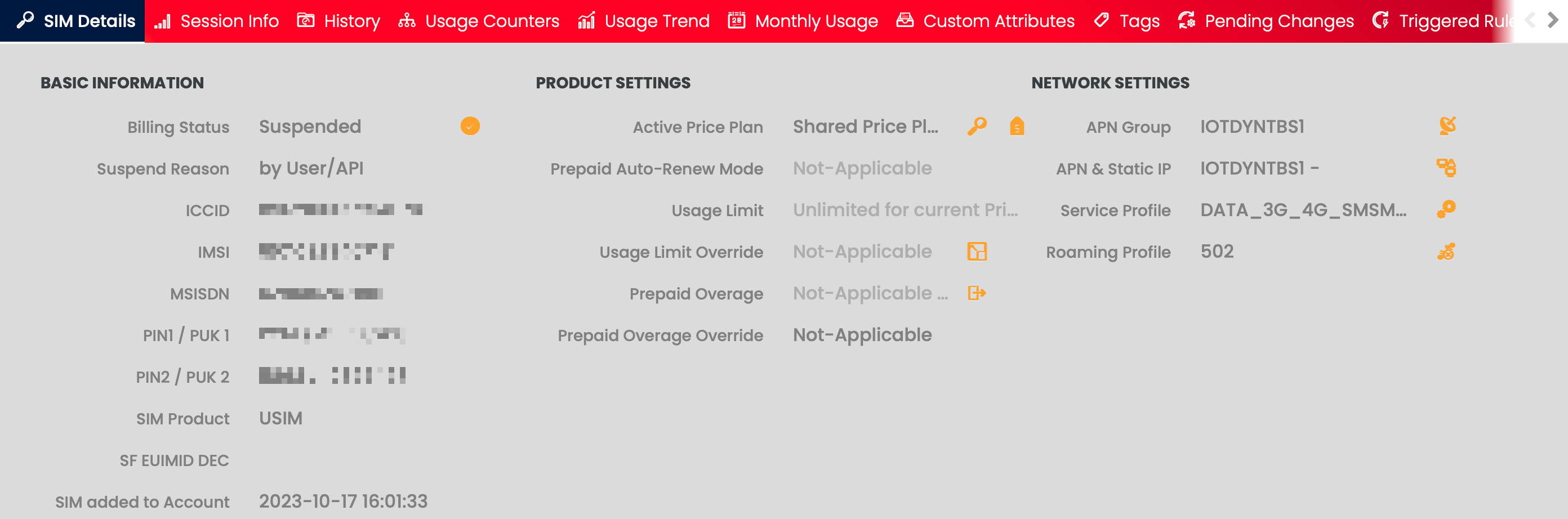
In the SIM Details tab, the most important properties of the SIM Card are grouped into Basic SIM Information, SIM Product and Network Settings. Some of these properties are already displayed in the SIM Grid.
Users can also immediately initiate SIM operations related to modifying SIM Product and Network Configuration Settings. Please refer to the Object Functions Menu below for more information on how the operations are carried out.
Note:
The list of displayed fields may differ depending on the selected SIM Card.
View Price Plan Details
In order to understand the various cost items and create a high-level estimate based on the current or expected usage of the current Billing Cycle, Enterprise Account Users can look into the details of the Price Plans that have been assigned to their Account. To view the Price Plan Details, click on the Show Price Plan Details  icon next to the name of the Price Plan.
Note that the Show Price Plan Details option is only available for Zone Price Plans.
For further information, please refer to the Price Plan Details section of the user manual.
Basic SIM Information | SIM Product Settings | Network Settings | |||
|---|---|---|---|---|---|
Field | Description | Field | Description | Field | Description |
Billing Status | Billing Status of the SIM Card. | Active Price Plan | The Price Plan that is currently assigned to the SIM. | APN Group | The APN Group currently assigned to the SIM. |
Suspend Reason | Informs Users as to why a SIM Card has been suspended. Note: The field is only visible for SIM Cards with Billing Status Suspended. | Base Price Plan | The Base Price Plan is the permanent Price Plan assigned to the SIM and the Price Plan the SIM will move back to at the end of the Billing Cycle. Note: If the Active Price Plan of the SIM Card is a Permanent one, the Base Price Plan field is hidden. | APN & Static IP | The APN and Static IP currently assigned to the SIM. In that case, the position of the IP Address is marked with "-" to indicate that the IP Address is dynamically allocated. |
Network Status | Indicates whether the SIM Card in the Mobile Network is set to Active, which means that the SIM Card can log into a Mobile Network. However, which services the SIM may use can not be read from this status. Not Supported is displayed for SIM Cards on Platforms that do not support the function and for SIM Cards in a Billing Status where the SIM is not known by the Network. | Usage Limit | Usage Limit defined for the SIM Card. Note: The Usage Limit field is only available in case the related feature is enabled on the CMP instance. | Service Profile | The Service Profile currently assigned to the SIM. |
ICCID | Identifier of the SIM Card. | Usage Limit Override | Usage Limit Override defines the SIM behavior when the SIM reaches the monthly data limit, which is defined at the Platform.
Note: The Usage Limit Override field is only available in case the related feature is enabled on the CMP instance. | Roaming Profile | The Roaming Profile currently assigned to the SIM. |
IMSI | Identifier of the subscriber. | Prepaid Overage | Prepaid Overage defines whether Prepaid Overage is applicable for the current Price Plan of the SIM Card. Prepaid Overage is only applicable in case of Prepaid Price Plans. Note: The Prepaid Overage field is only available in case the related feature is enabled on the CMP instance. | ||
MSISDN | An MSISDN is a phone number associated with a SIM Card. | Prepaid Overage Enabled | Prepaid Overage Enabled whether Prepaid Overage is enabled for the currently assigned Prepaid Price Plan of the SIM Card.
Note: The Prepaid Overage Enabled field is only available in case the related feature is enabled on the CMP instance. | ||
PIN/PUK | The PIN (Personal Identification Number) code is intended to protect the SIM Card from unauthorized use and PUK (Personal Unlocking Key) for PIN unlocking. | ||||
SIM Product | SIM Product defines the size and technical aspects of the SIM Card. | ||||
SIMaS Username | SIM Authentication Service (SIMaS) username. | ||||
SF EUIMID DEC | The SF_EUIMID_DEC is a short form of EUICC and MEID (IMEI) used to correlate an activation request within Amdocs TOPS. The SF_EUIMID_DEC is an attribute of the ICCID and not the IMSI. Note: This data item cannot be changed via GUI and if the field is not loaded with the SIM File Upload, it cannot be added later. | ||||
EID | Unique identifier of the eSIM. By clicking on the EID, the grid will search and show all the eSIM Profiles linked to the EID. | ||||
Type | Type of the SIM. Available values are SIM, eSIM, eSIM Profile. | ||||
SIM added to Account | Time and date the SIM Card was assigned to the Account. | ||||
Session Info
The Session Info tab displays information about the most recent Data, SMS, and Voice session for the selected SIM Card.
When the Session Info tab is selected, the Session Status and a number of associated details are automatically updated without User intervention. The following data is automatically updated:
- in the SIM Grid
- Data Session (showing the Session Status)
- RAT Type
- Data Session IMEI
- Country (code)
- in the Session Info tab
- Session Status (as the SIM goes online/offline, it changes between "Last Data Session" and "Current Data Session")
The status refresh interval is set to 2 minutes by default and cannot be decreased to less than 30 seconds.
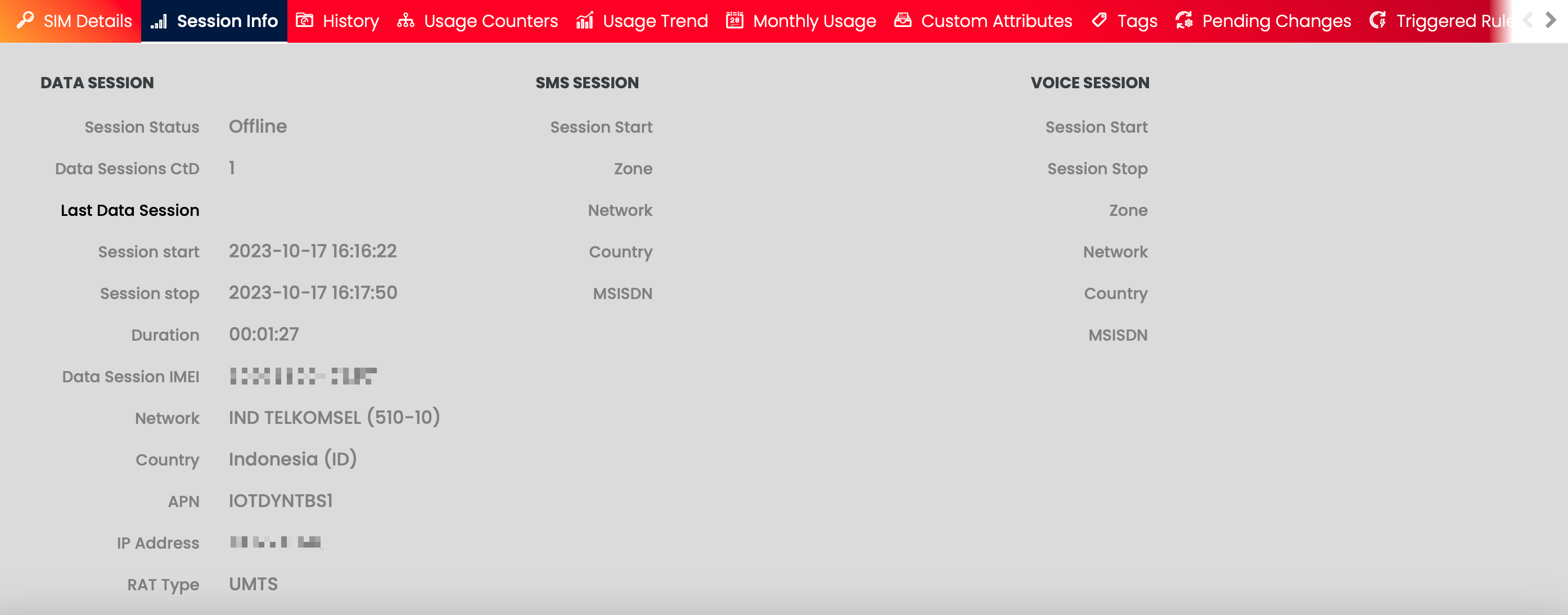
Data Session | SMS Session | Voice Session | |||
|---|---|---|---|---|---|
Field | Description | Field | Description | Field | Description |
Data Session | The field provides information on the most recent data session of the SIM (in case there was one). Available values:
| Zone | Zone where the SIM's last SMS was sent/received. | Zone | Zone where the SIM's last voice session started. |
Last Data Session | The date and time of the last data session. | Network | Network of the SIM's most recent SMS session. | Network | Network of the SIM's most recent voice session. |
Reject Reason | Informs Users as to why a SIM Card's data session has been rejected. Note: The field is only visible for SIM Cards that have a blocked data session. | Country | SIM Location Country where the SIM's last SMS was sent/received. | Country | SIM Location Country where the SIM's last voice session started. |
Data Session IMEI | The IMEI of the SIM Card reported by the Gy interface. | MSISDN | MSISDN of the SIM Card. | MSISDN | MSISDN of the SIM Card. |
Network | Network of the SIM's most recent data session. | Session Start | The time indicates when the last session started. | Session Start | The time indicates when the last session started. If the session is active, only the start time will be displayed. |
Country | SIM Location Country where the SIM's last data session started. | Session Stop | The time indicates when the last session closed. If the session is active, only the start time will be displayed. | ||
APN | APN used in the data session. | ||||
IP Address | The IP address displayed here is the IP address assigned to the SIM Card in the Operator's Network. Important, this is not a public IP address. | ||||
Session Start | The time indicates when the last session started. If the session is active, only the start time will be displayed. | ||||
Session Stop | The time indicates when the last session closed. If the session is active, only the start time will be displayed. | ||||
RAT Type | RAT Type used in the most recent data session. | ||||
History
The History tab displays the history of all automated and user-generated actions for the selected SIM Card. Failed operations of the SIM Card are only displayed for Users with the Root context assigned. In such cases, two additional columns (Operation Status, Error Code) become available.
The details displayed in the History tab can be searched by
- Description, or
- Source Id,
and can be filtered by
- Operation Status* (only available to Users with the Root context assigned),
- Operation, or
- Source.
*By default, the Operation Status filter is set to Success. The filter value needs to be changed in order to display Failed operations.
The content of the History tab can be exported for future use by clicking the Export  icon.
icon.
Note that the export file contains all 7 available columns (including Operation Status and HLR Error Code) for Users with the Root context assigned, but only 5 columns (excluding Operation Status and HLR Error Code) for Users with the Account or Customer context(s) assigned.
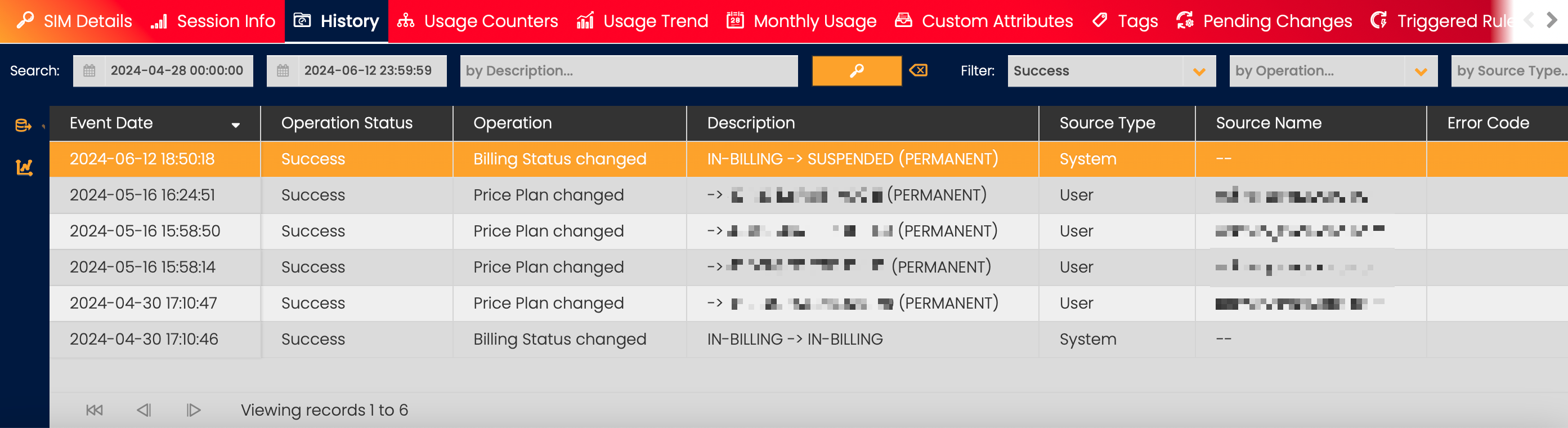
Field | Description |
|---|---|
Event Date | Recorded time and date of the event. |
Operation Status | Indicates if the operation was successful or failed. Note: The column is only available for Users with the Root context assigned. |
Operation | Type of the recorded operation:
|
Description | Details about the recorded event. |
Source | Source of the recorded event:
|
Source ID | Identifier of the source. |
Error Code | Error Code for the failed operation. For successful operations, the field is left blank. Note: The column is only available for Users with the Root context assigned. |
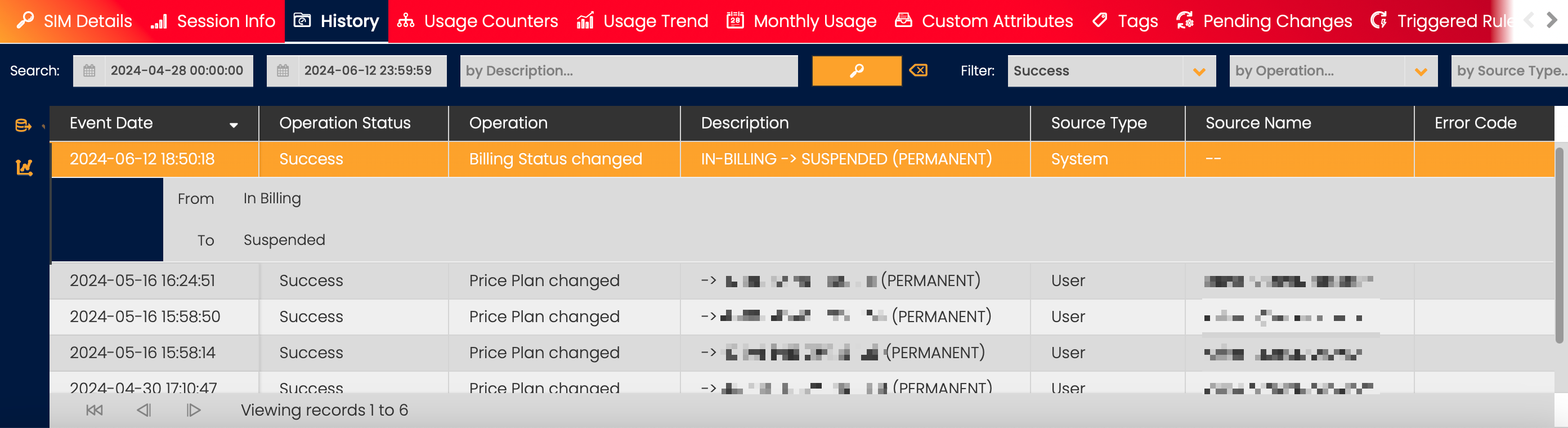
Users can learn more about the selected change by double-clicking on an item in the History tab.
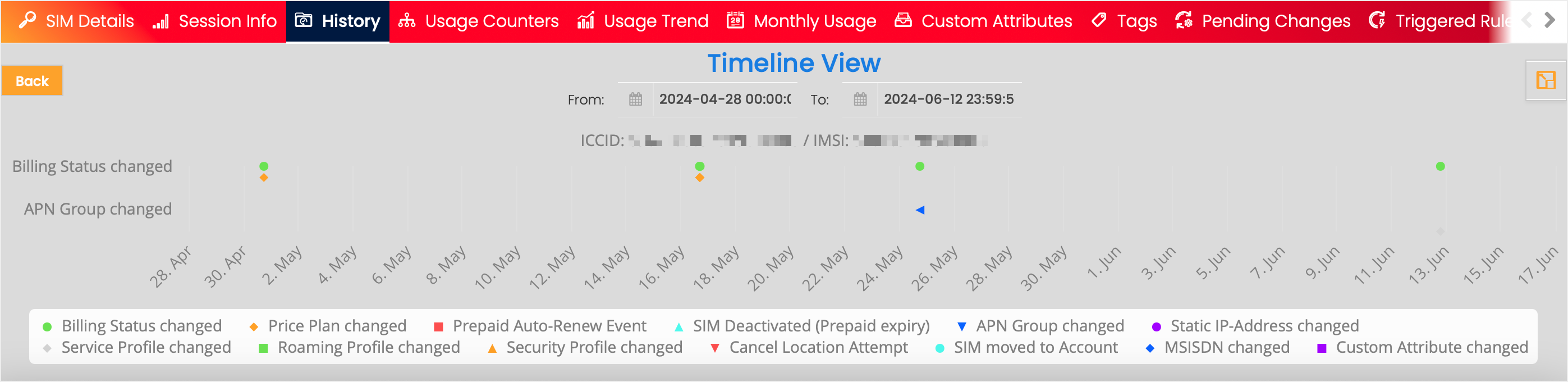
By selecting the Timeline View  icon, Users can also view the content of the History tab as a timeline. To return to the original setup, click the List View button.
Usage Counters
Note:
All Usage Counters displayed in the Enterprise Portal are aligned with the CSP Time Zone, which may differ from UTC.
For each SIM Card and all profiles in an eSIM/Multi-IMSI, the usage of each network service is counted from multiple perspectives called Scope Types. The Current Value for each Scope Type is constantly updated to reflect the most recent usage.
Each line in the Usage Counter panel appears automatically when any of the counted Scope Types and Sevices are used by a SIM.
Usage Counters can be filtered by Period, Service, and Scope Type.
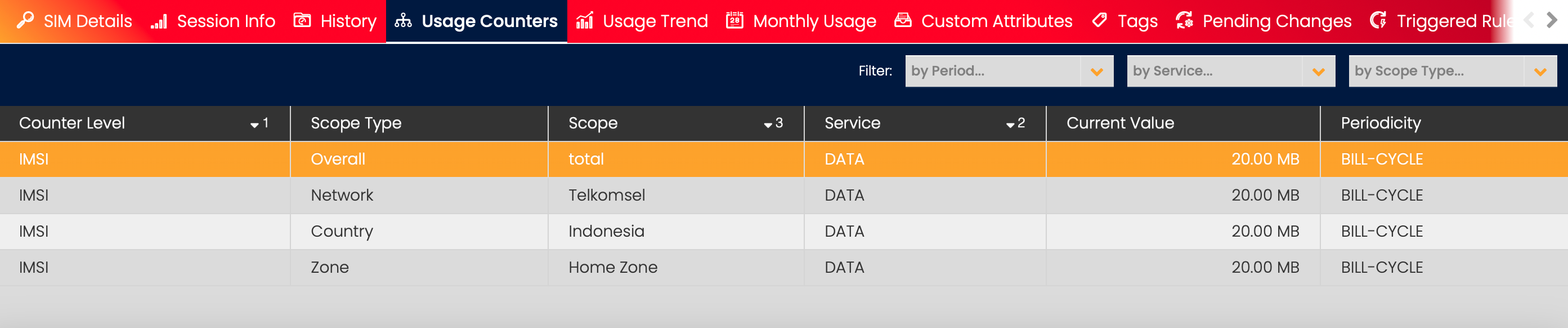
Usage Counter Data General Description
Field | Description | Field | Description |
|---|---|---|---|
Counter Level | Indicates the type of entity that is either IMSI or ICCID. | Service |
|
Scope Type |
| Current Value | The amount of usage counted. Depending on the service type, the counter value can represent a number of data octets, SMS messages, or session counts. |
Scope | Further information defining the Scope Type.
| Periodicity | The timeframe in which the Current Value was calculated.
|
Usage Trend
Note:
All Usage Trends displayed in the Enterprise Portal are aligned with the CSP Time Zone, which may differ from UTUsage Trend gives the User a quick visual overview of Data, SMS, or Voice usage over the selected period of time.
The time-frame axis can be changed by entering dates to the From and To fields. Users can select a timeframe of up to six months.
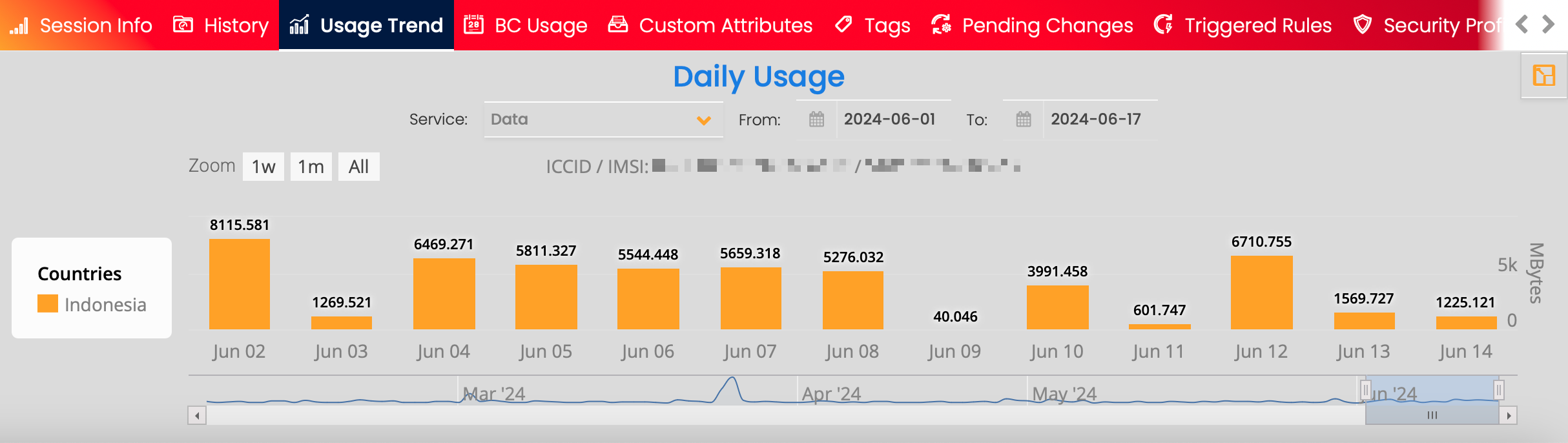
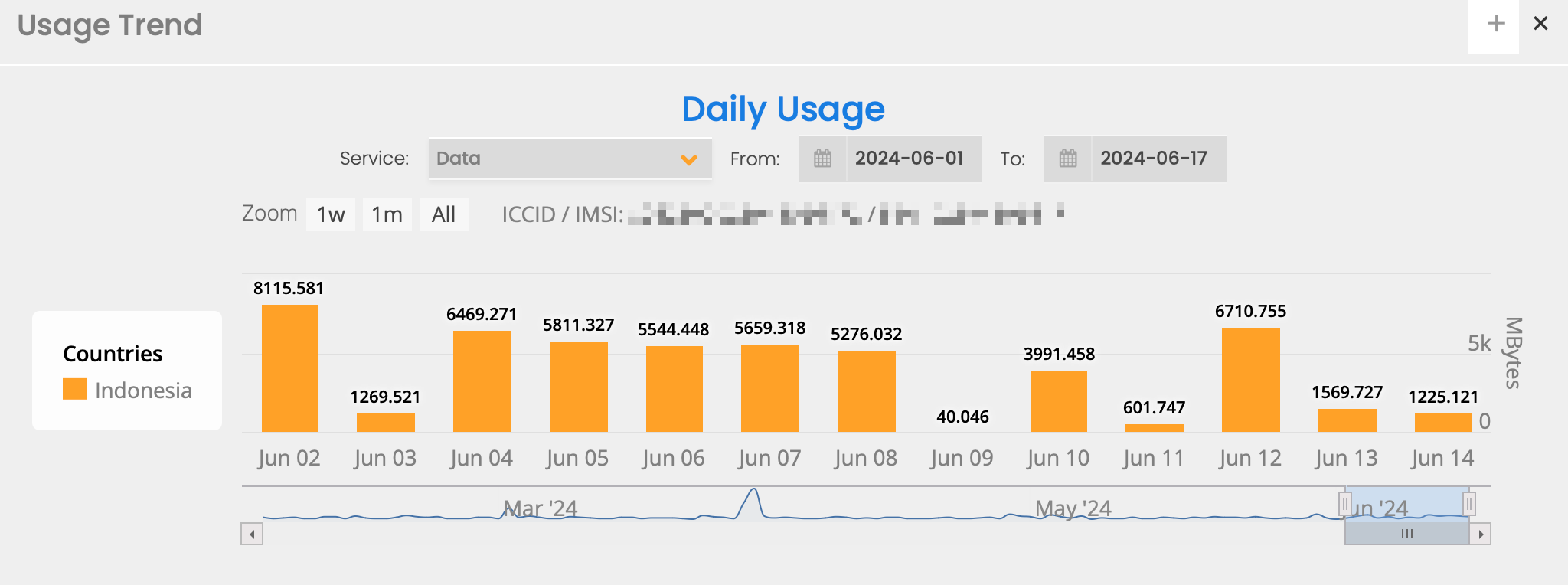
By selecting the Open in new window  icon, the content of the Usage Trend section can be seen in a new window. To switch to full-screen view, click on the plus
  icon.
icon.
Monthly Usage/BC Usage
Note:
- All Monthly/BC Usage counters displayed in the Enterprise Portal are aligned with the CSP Time Zone, which may differ from UTC.
- Monthly Usage/BC Usage on the Root level displays usage in the current month (e.g. 2022-09), whilst on the Account or Customer level it displays usage in the current Billing Cycle (e.g. 2022-09-04 - 2022-10-03).
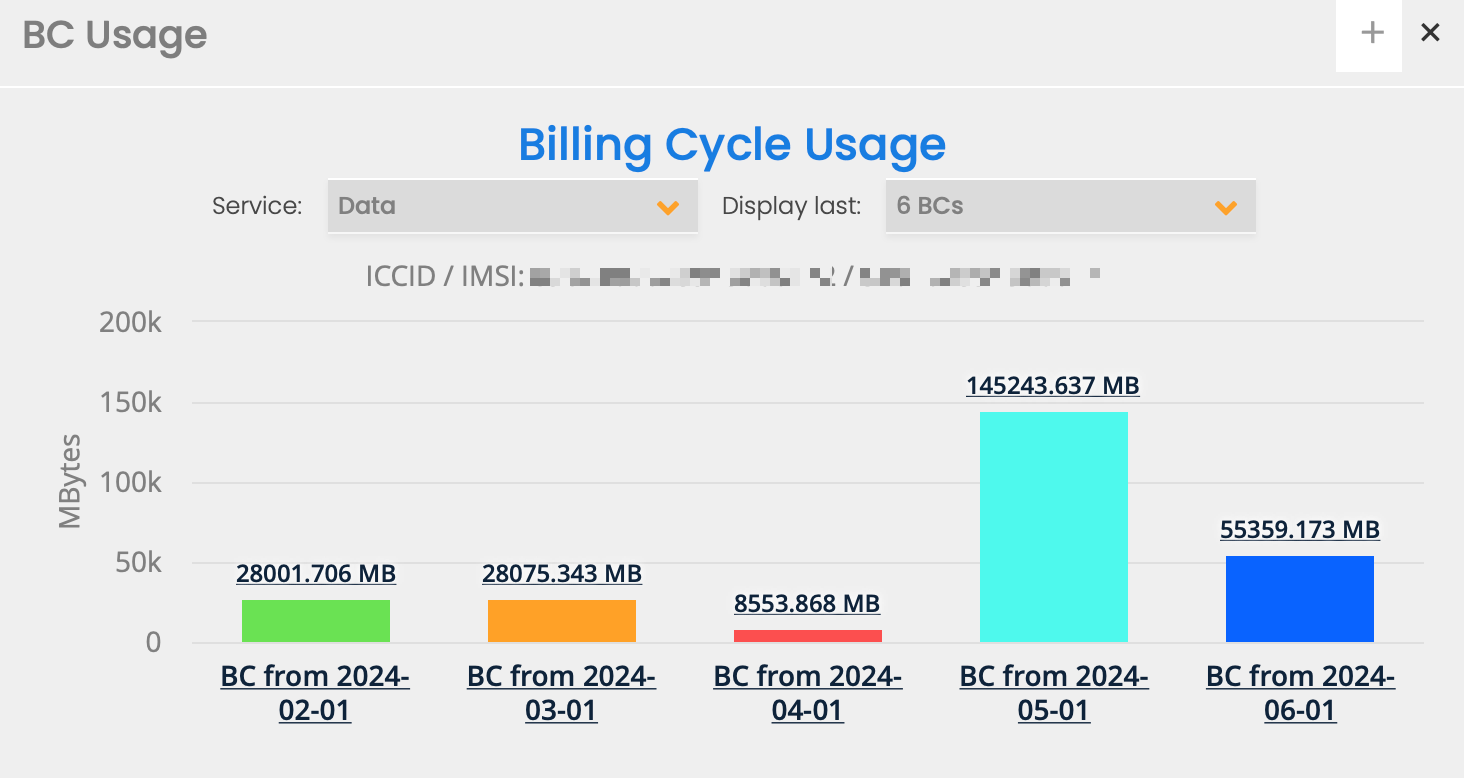
Monthly/BC Usage gives the User an overview of Data, SMS, or Voice usage over a longer time period, such as a year or multiple years.
The usage can be split by country with a click on the selected month.
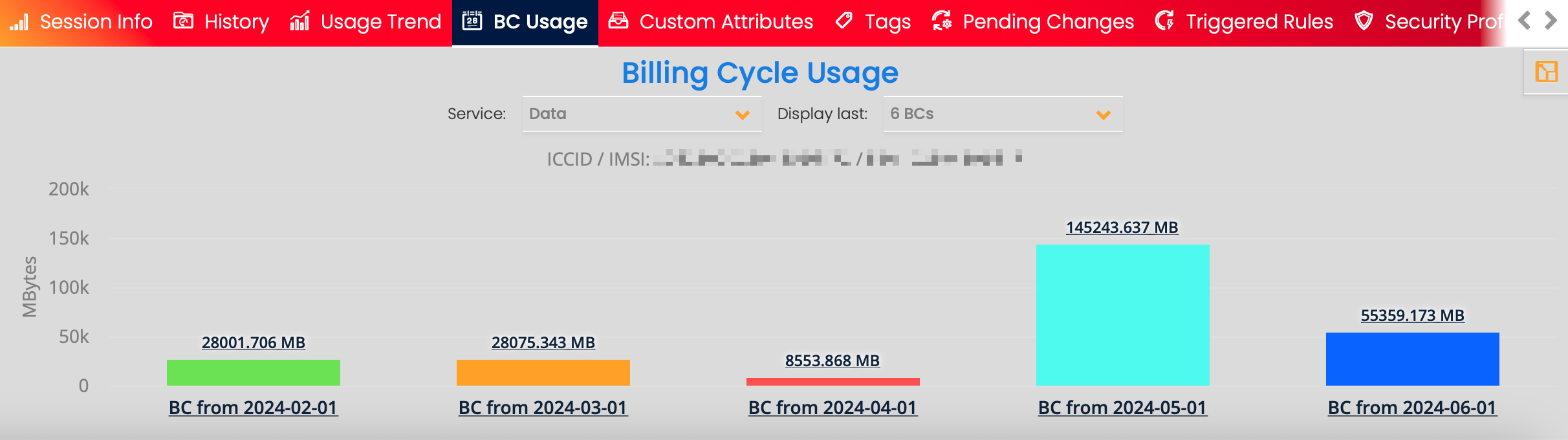
By selecting the Open in new window icon, the content of the Monthly/BC Usage section can be seen in a new window. To switch to full-screen view, click on the plus icon.
Custom Attributes
Custom Attributes allow Users to provide additional information about SIM Cards. The values of the Custom Attributes are defined individually for each SIM.

Create Custom Attributes
Custom Attribute creation and management options are available in the Custom Attributes section under the SIM Cards tab.
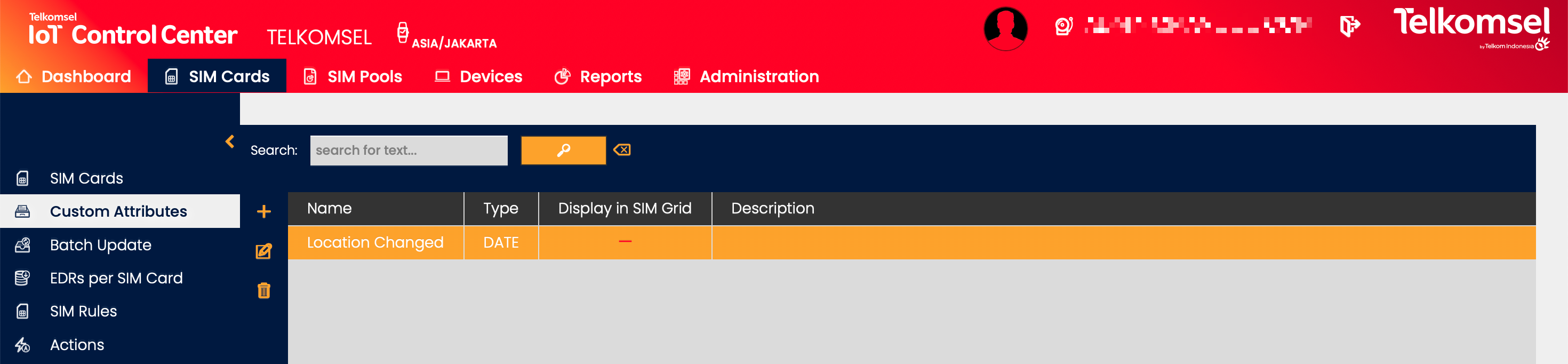
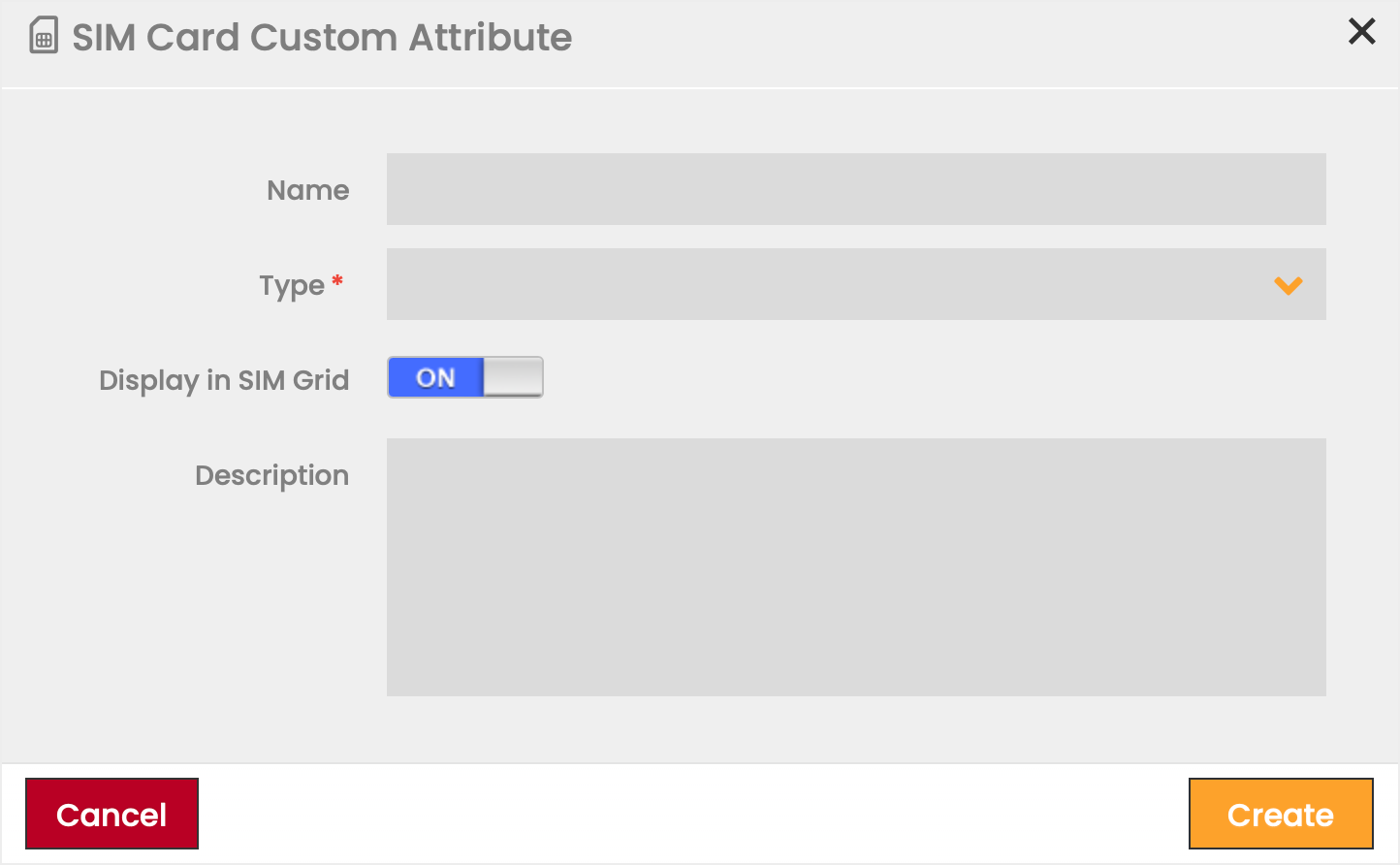
To create a Custom Attribute:
- Click on the Add
 icon.
icon. - Specify the Custom Attribute details.
- Click the Create button to confirm.
Field | Description |
|---|---|
Name | Name of the Custom Attribute. |
Type | Type of the Custom Attribute. Available values:
|
Display in SIM Grid | Indicates whether the Custom Attribute is displayed in the SIM Grid. Custom Attributes selected to be displayed will be displayed at the end of the SIM Grid following the existing columns. The column headers will display the name of the Custom Attribute. Note: This option is only available on Account level. The option is not visible for Root context. |
Description | Comments/remarks regarding the Custom Attribute. |
To edit or delete a Custom Attribute:
- Click the Edit
 icon to modify the settings seen in the Custom Attribute creation.
 - Click the Delete
 icon to delete a Custom Attribute.
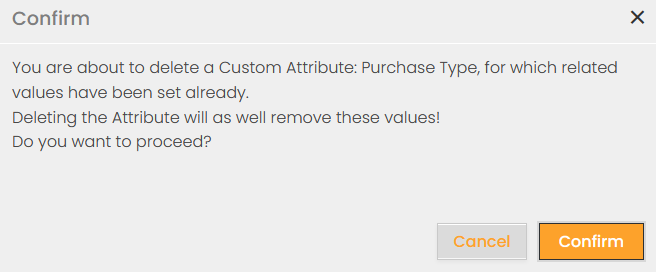
Note: In case the Custom Attribute about to be deleted has set values, the User will be presented with a warning.
The maximum number of Custom Attributes to be created via the GUI per Account can be configured on each CMP instance. In case the limit has been reached and the User tries to create a new Custom Attribute an error message is displayed.

Furthermore, the allowed number of Custom Attributes to be displayed in the SIM Grid can be configured per CMP instance. If fewer Custom Attributes are selected to be displayed, then only the selected amount of columns will be added to the SIM Grid, and no empty columns will be shown. In case, the limit of the number of displayed Custom Attributes has been reached the User will be presented with an error message.

Assign Custom Attributes to a SIM
After defining SIM Custom Attributes, it is possible to assign these Custom Attributes to specific SIM Cards.
To assign Custom Attributes to a specific SIM:
- Select a SIM Card from the SIM Grid.
- Go to the Custom Attributes section of the Extended Details Menu.
- Select a Custom Attribute from the right column.
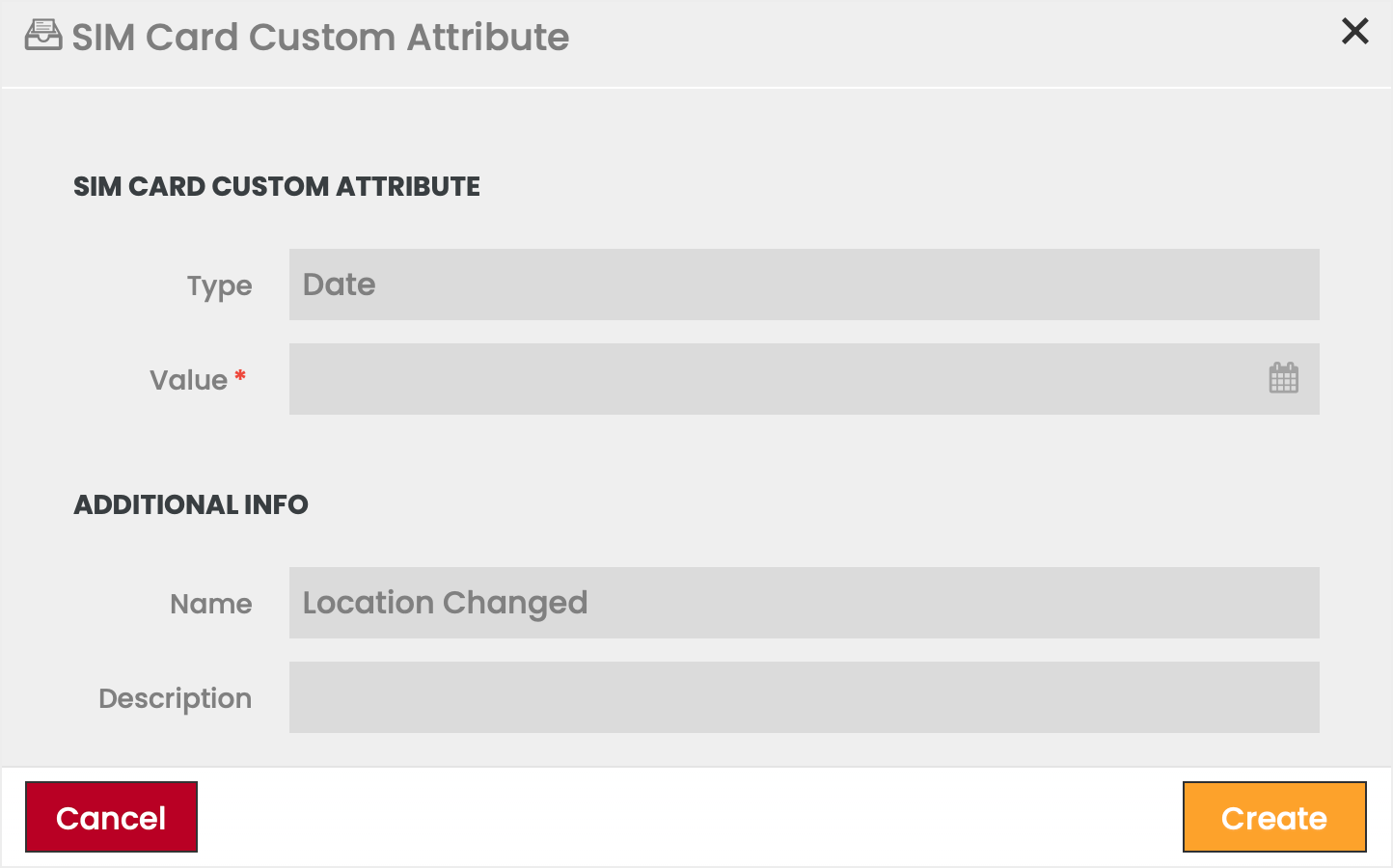
- Click the Assign
 icon to assign the attribute to the selected SIM.
 - Define the value of the attribute.
- Click Create to confirm.
To remove an assigned Custom Attribute:
- Select a SIM Card from the SIM Grid.
- Go to the Custom Attributes section of the Extended Details Menu.
- Select an assigned Custom Attribute in the left column.
- Click on the Remove
 icon to unassign the attribute from the selected SIM.
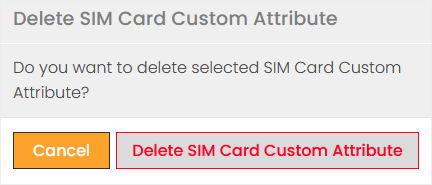
 - Confirm the action.
Tags
Tags are visual clues as to one or more descriptions that have been attributed to a SIM. For a detailed description of the creation and usage of Tags see the Understanding Tags section of the manual.
Note:
Tags differ from Custom Attributes since they represent more generic descriptions, which can be applied to multiple SIMs.

To assign a Tag:
- Select a SIM Card from the SIM Grid.
- Go to the Tags section of the Extended Details Menu.
- Click on the Add icon.
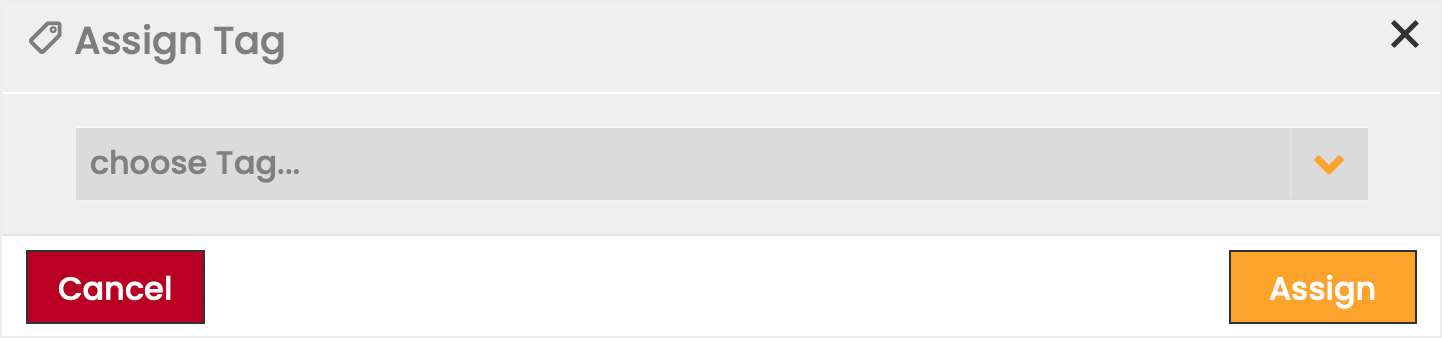
- Select a Tag from the dropdown list.
- Click Assign to apply your selection.
To remove a Tag:
- Select a SIM Card from the SIM Grid.
- Go to the Tags section of the Extended Details Menu.
- Select a Tag from the assigned Tags.
- Click on the Delete icon.
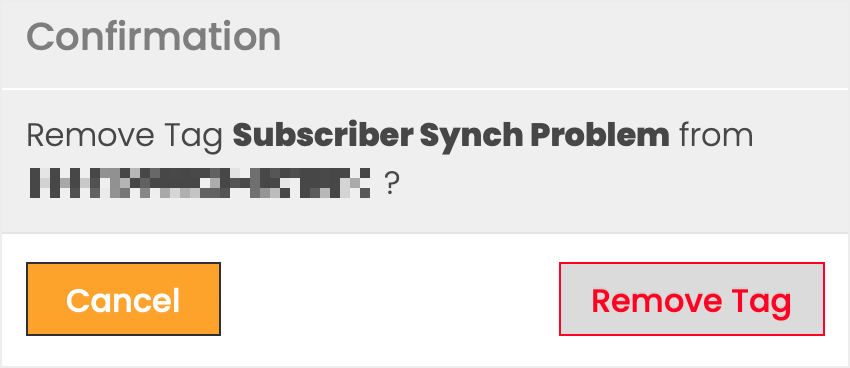
- Confirm the action.
Pending Changes
Pending Changes tab informs the Users about pending changes and ongoing or failed processes. In case a change or process is cancelable, resumable, or removable the User can execute the process action from the respective column of the Pending Changes tab.

Field | Description |
|---|---|
Change Type | Type of the change, e.g. process. |
Process Status | Status of the change, e.g. ongoing |
Current Process Step | Type of the current process, e.g. SIM Life Cycle - CUSTOMER-INVENTORY to IN-TESTING. |
Error Message | Error message containing details about the reason of the failure. |
Operation started | Indicates when the process has been triggered. |
Updated at | Indicates when the process has been updated. |
Cancelable | Indicates whether the process step is cancelable. If allowed, the action button is available in the column. |
Resumable | Indicates whether the process step is resumable. If allowed, the action button is available in the column. |
Removable | Indicates whether the process step is removable. If allowed, the action button is available in the column. |
Triggered Rules
Triggered Rules tab displays all the Rules that are related to the selected SIM Card and have been triggered.

Field | Description |
|---|---|
First Triggered Date | Date and time when the Rule was first triggered in the Rule Period (24 hrs/Billing Cycle). |
Rule Name | User-defined name of the Rule. |
Rule Type | Rule Type of the triggered Rule selected at Rule creation. |
Rule Status | Indicates whether the Rule is ACTIVE or INACTIVE. |
Service(s) Block Triggered | Indicates whether a Block type Action is assigned to the Rule. |
Block Currently Active | Indicates whether the Block is currently active. |
The Service Block can be manually removed by unchecking the checkbox in the Block Currently Active field, which allows the SIM to return to consuming Data Services before the Rule Period is over.
Security Profiles
Security Profiles prevent SIMs from using data in unauthorized devices and sending/receiving of SMS from unwanted MSISDNs.
Clicking the  icon in the Details column allows Users to view the configuration of the selected Security Profile.

Device
The CMP allows Users to manage the relationship between SIM Cards and their Devices. If a Device is defined with a SIM Card, this information will be displayed in the SIM Cards Extended Details menu.
Note:
The process of assigning a SIM Card to a Device is initiated in the Devices module.

Diagnostics
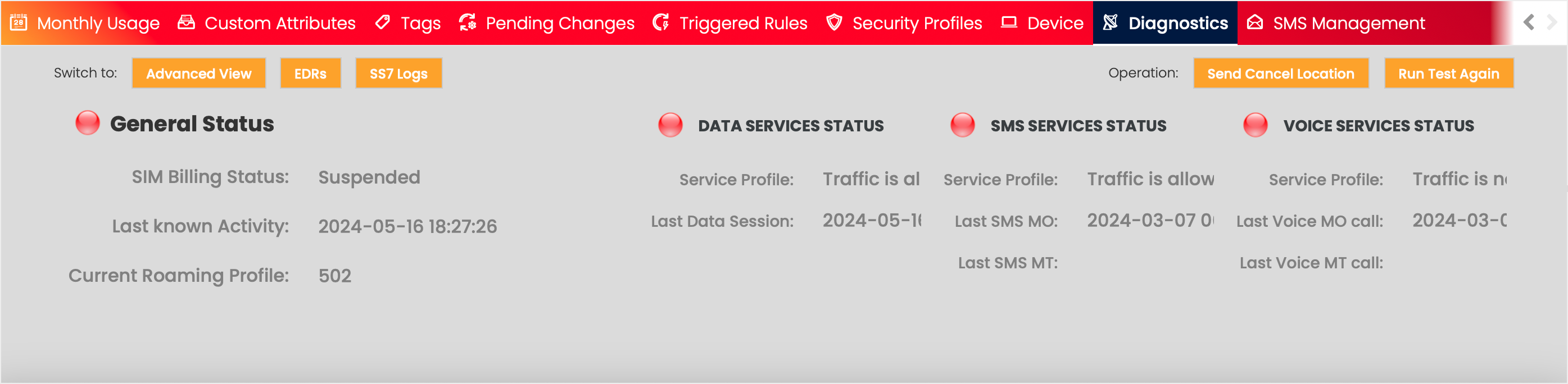
In case Basic Diagnostics is enabled on the CMP instance, the tab allows Users to quickly determine whether there are any issues or potential issues with a specific SIM. The data is presented in the form of a traffic light, with the following values:
green indicates that everything is normal and in order,
amber indicates that not all tests were successful or possible; however, problems are minor or may be temporary; and
red indicates that all tests failed.
The traffic light status view displays the following information to Users:
SIM Billing Status
SIM Network/Session Status
Service Profile Status
IP/Internet Status
Has SIM used SMS is the last 48 hours or 15 days
Has SIM used Voice is the last 48 hours or 15 days
Users can also use the Basic Diagnostic tools to send a Cancel Location request to help with troubleshooting.
By clicking on the Advanced view button, Users can access more detailed information about the SIM Card.
Note:
- Advanced view is only available in case the Advanced Diagnostics feature is enabled on the CMP instance.
- This view is only accessible to those Users who have the necessary Access Rights.
Advanced Diagnostics
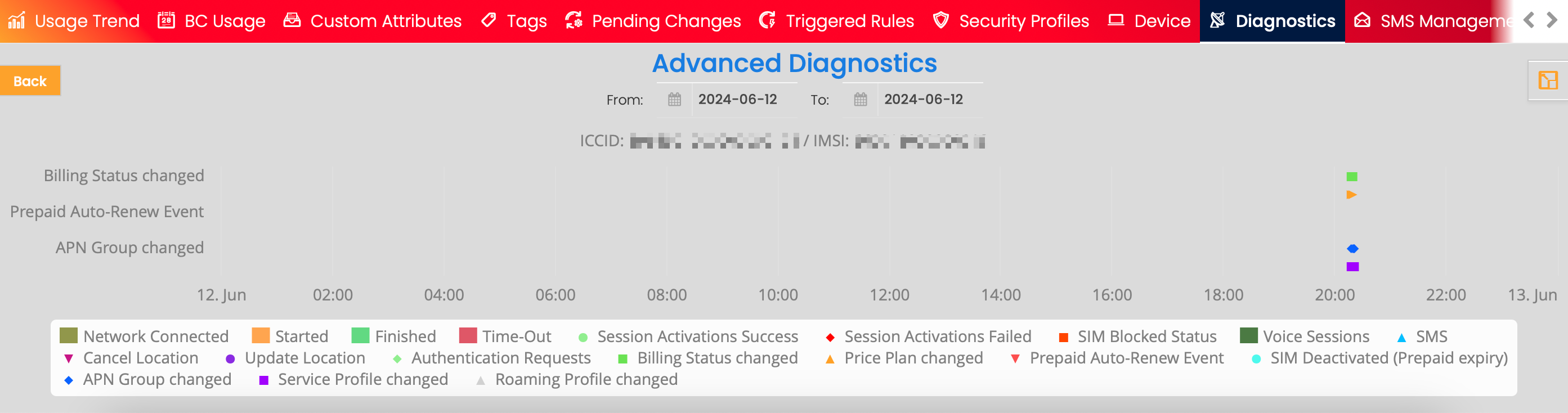
Advanced Diagnostics allows Users to view SIM-related activity and events and determine the root cause of any connectivity issues that may arise.
The following information is displayed:
- Network Connected
- Data Session
- Voice
- SMS
- Session Activation
- Cancel Location
- Update Location
- Authentication Requests
- Billing Status Changed
- Price Plan Changed
- Prepaid Auto-Renew Event
- SIM Deactivated (Prepaid Expiry)
- APN Group Changed
- Service Profile Changed
- Roaming Profile Changed
Users are able to gather more information by hovering over any displayed event.
The time-frame axis can be changed by entering dates to the From and To fields. Users can select a timeframe of up to one month.
SS7 Logs
The CMP displays log data from SS7 Logs to Enterprise Users in the SS7 Logs tab.
The content of the SS7 Logs tab can be exported for future use by clicking the Export  icon.
icon.
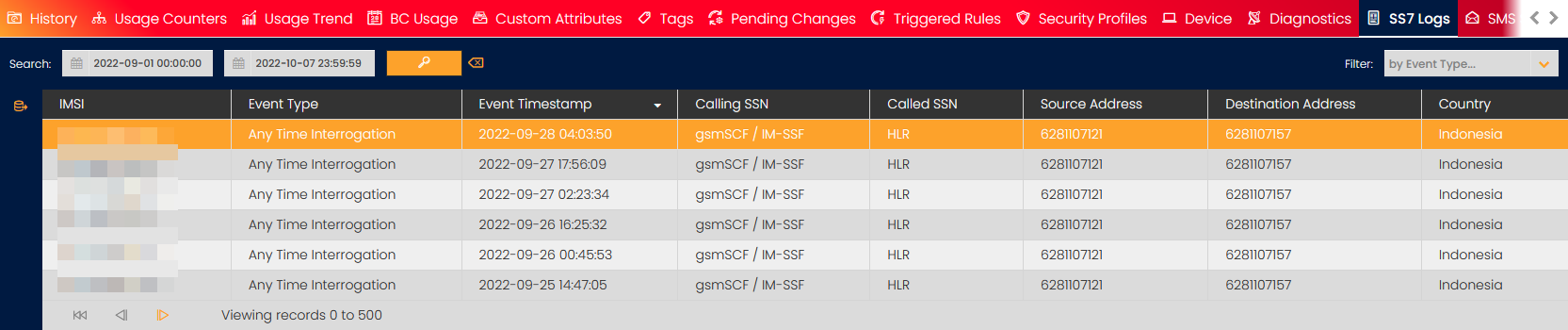
Field | Description |
|---|---|
IMSI | IMSI of the selected SIM |
Event Type |
|
Event Timestamp | The recorded time of the event |
Calling SSN | Name of the calling sub-system |
Called SSN | Name of the called sub-system |
Source Address | Source address of the event |
Destination Address | Destination address of the event |
Country | The country in which the SIM was active when the event occurred |
SMS Status
Note that in case either or both of the SMS Delivery Reports or SMS Message Termination features are enabled on the CMP instance the SMS Management tab (see below) is made available to the Users and the SMS Status tab is hidden.
The CMP interacts with the SMSC in order to display the status of SMS sent to/from a SIM. This information is displayed in the SMS Status tab.
Field | Description |
|---|---|
Event Time | The recorded time of the SMS event. |
Origination MSISDN | MSISDN from which the SMS was sent. (Also, Short Code in most AO cases.) |
Destination MSISDN | MSISDN to which the SMS was sent. (Also, Short Code in most AT cases.) |
Message Type | In relation to the selected SIM:
|
Delivery Status |
|
Country | The country in which the SIM was active when the SMS was sent/received. |
Network | The network in which the SIM was active when the SMS was sent/receive. |
Session ID | Session Identifier from the SMSC. |
SMS Management
Note that the SMS Management tab is only available in case either or both of the SMS Delivery Reports or SMS Message Termination features are enabled on the CMP instance and only Users with the necessary ACL can access the SMS Management tab. In case none of these features is enabled on the CMP instance, Users are presented with the SMS Status tab (see above).
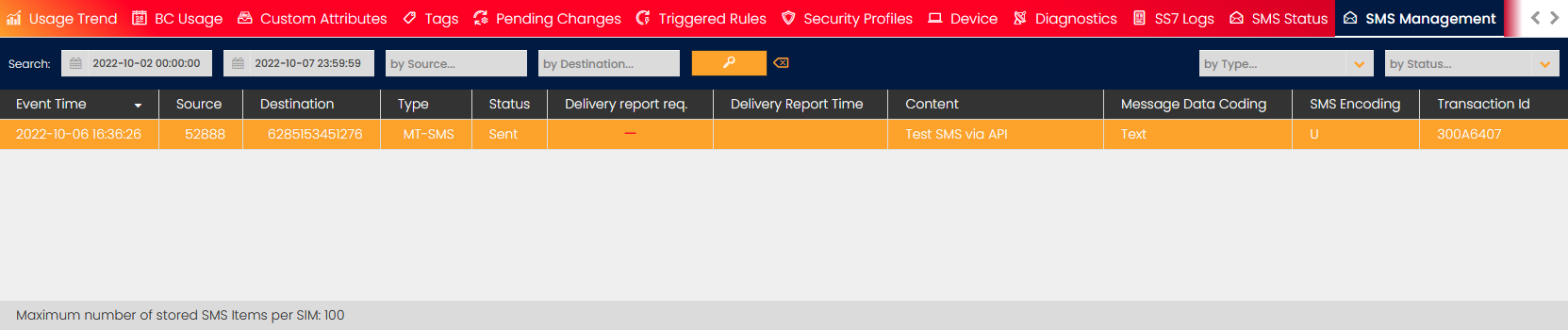
The CMP logs the SMS sent to the SMSC in order to display the SMS sent from the CMP to a SIM and CMP retrieves SMS from the SMSC in order to display the MO-AT sent from the device containing the SIM Card. This information is displayed in the SMS Management tab.
The details displayed in the SMS Management tab can be searched by
- Date and Time (from/to),
- Source, or
- Destination,
and can be filtered by
- Type, or
- Status.
The Enterprise Portal also supports the request, retrieval, and presentation of Delivery Reports for SMS sent via CMP. SMS Delivery Reports can be requested when using the Send SMS feature. For more detail please see the Send an SMS section below.
Each CMP instance is configured to automatically remove SMS Delivery Reports after a predefined number of days (usually 30), and also if there are more than 100 SMS and SMS Delivery Reports stored in CMP per SIM.
Field | Description | Field | Description |
|---|---|---|---|
Event Time | Recorded time of the SMS event. | Delivery Report Time | Date and time when the Delivery Report was delivered. |
Source | MSISDN or short code from which the SMS was sent. | Content | Content of the SMS. Note that no SMS that has been encoded in binary or hexadecimal is expected to be decoded by CMP. |
Destination | MSISDN or short code to which the SMS was sent. | Message Data Coding |
|
Type | Type of the SMS in relation to the selected SIM:
| SMS Encoding |
|
Status | Status of the SMS:
| Transaction ID | Transaction identifier from the SMSC. |
Delivery Report Req. | Delivery Report Req. field shows if an SMS Delivery Report has been requested. Note: This is only applicable to MT SMS, i.e. SMS sent from the CMP to the SIM. |
The Object Functions Menu

Allowed SIM Changes across the SIM Lifecycle
CMP restricts which SIM Settings that can be changed, at different points in the SIM Lifecycle (SIM Billing Status). The default configuration is shown in the table below.
SIM Settings Changes | Customer Inventory | In Testing | In Billing | Suspended | Retired |
|---|---|---|---|---|---|
Change Network Status | Not Available | Manual & Automated Change Allowed | Manual & Automated Change Allowed | Manual & Automated Change Allowed | Not Available |
Change Service Profile | Not Available | Manual & Automated Change Allowed | Manual & Automated Change Allowed | Manual & Automated Change Allowed | Not Available |
Change MSISDN | Not Available | Manual Change Allowed | Manual Change Allowed | Manual Change Allowed | Not Available |
Change APN Group | Not Available | Manual & Automated Change Allowed | Manual & Automated Change Allowed | Manual & Automated Change Allowed | Not Available |
Change Static IP | Not Available | Manual Change Allowed | Manual Change Allowed | Manual Change Allowed | Not Available |
Change Roaming Profile | Not Available | Manual Change Allowed | Manual Change Allowed | Manual Change Allowed | Not Available |
Change Price Plans | Not Available | Manual & Automated Change Allowed | Manual & Automated Change Allowed | Manual & Automated Change Allowed | Not Available |
Change Security Profile | Not Available | Manual Change Allowed | Manual Change Allowed | Manual Change Allowed | Not Available |
SIM move to a new Account | Not Available | Manual Change Allowed | Manual Change Allowed | Manual Change Allowed | Not Available |
SIM Swap / Replacement | Not Available | Manual Change Allowed | Manual Change Allowed | Manual Change Allowed | Not Available |
However, in certain CMP instances, the configuration has been changed, and if a change is not allowed, the user is presented with an error message.
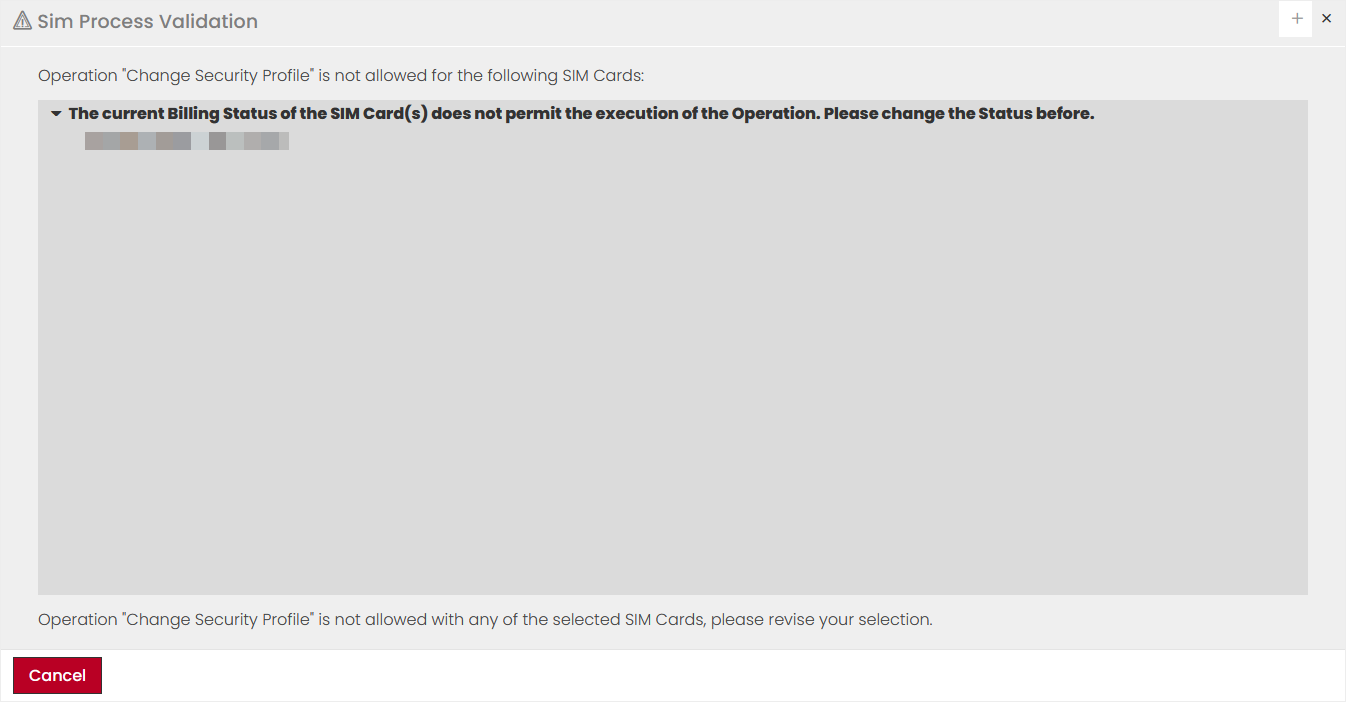
Validation of multiple SIMs selected for SIM changes
When multiple SIM Cards are selected, the Enterprise Portal will validate the allowed SIM setting changes for the selected SIMs. The validation will apply for the following changes:
- Change Network Status
- Change Billing Status
- Change Service Profile
- Change MSISDN
- Change APN Group
- Change Static IP
- Change Roaming Profile
- Change Price Plans
- SIM move to new Account
When multiple SIM Cards are selected from the SIM Grid, EP will retrieve the SIM changes allowed for the selected SIMs.
In case the operation is allowed for at least one SIM Card in the selected set of SIMs, the whole operation will not be blocked, rather the User will be presented with the option to proceed with the subset of SIMs for which the change is permitted.
Example
If the selected SIMs are all in status IN BILLING, then Price Plan change is allowed. If the SIMs are a mix of CUSTOMER INVENTORY and IN BILLING, the Price Plan change is only allowed for the SIM Cards in status IN BILLING.
Deactivation Confirmation
For every action that could result in a change of services for the customer, CMP will ask for confirmation before making changes to SIM settings. This will ensure that the user reconfirms that they would like to deactivate the target subscribers.
The confirmation pop-up will be populated for the following actions:
- Change Price Plan
- Change Billing Status
- Change Network Status
- Change APN Group
- Change Service Profile
- Change Account
- Send SMS
Confirmation messages
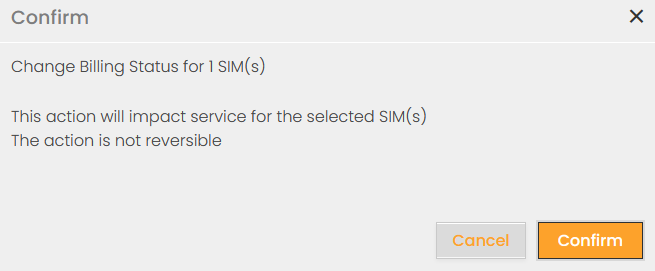
The majority of the Enterprise Portal actions have to be confirmed by the following pop-up message, which contains the requested action and the number of the selected SIM Cards.
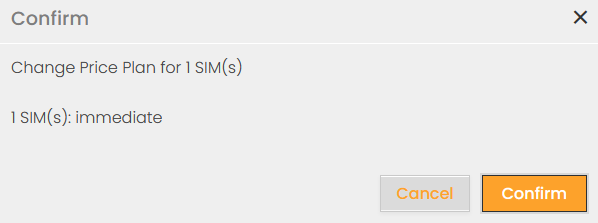
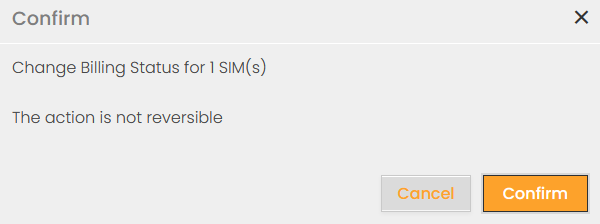
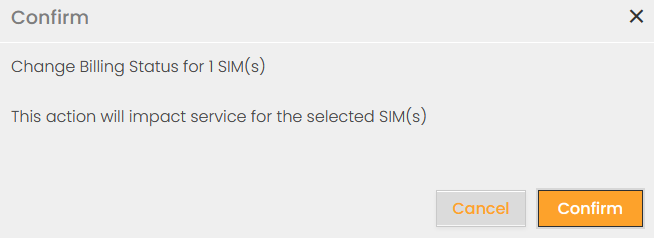
For actions that are either irreversible or will impact the service for the selected SIM Cards different pop-up messages are used.
Change Billing Status from Customer Inventory | Change Billing Status to Suspended and Change Network Status to Inactive | Change Billing Status to Retired |
|
|
|
Allowed combinations of Price Plans and Service Profiles
CMP can be configured to prevent manual and automated SIM Price Plan and Service Profile changes that result in services being enabled without an appropriate Price Plan being assigned to the SIM Card. To ensure charging for enabled services allowed Price Plan and Service Profile changes have to be validated.
Note:
This is an optional feature, only available if licensed on the CMP instance. The below-listed configuration items are preconfigured and there is no GUI option to configure them. Voice-related restrictions are only relevant if Voice services are licensed on the CMP instance.
The following tables detail the allowed and not allowed combinations of Price Plans and Service Profiles for each Licensable Feature setting.
Feature Disabled
- All/any combination of Price Plans and Service Profiles are allowed.
Feature set to "Basic"
- Checking the Service Profile Voice Services setting (regardless of whether Voice MO or Voice MT is enabled) and the Price Plan Voice Charge Type.
Service Profile: Voice Services | Price Plan: Voice Charging Type | Combination Allowed? |
|---|---|---|
Disabled | Any:
| Allowed |
Enabled | None | Not Allowed |
Enabled | MO, MT, or MO+MT | Allowed |
Feature set to "Advanced_MO"
- Checking the Service Profile Voice Services, Voice MO and Voice MT settings, and the Price Plan Voice Charge Type.
- Validation for Voice MO charging.
Service Profile: Voice Services | Service Profile: Voice MO & Voice MT | Price Plan: Voice Charging Type | Combination Allowed? |
|---|---|---|---|
Disabled | Any:
| Allowed | |
Enabled | Voice MO = Disabled Voice MT = Disabled | None | Allowed |
Enabled | One or both of
= Enabled | None | Not Allowed |
Enabled | Voice MO = Enabled Voice MT = either Enabled or Disabled | Either:
| Allowed |
Enabled | Voice MO = Enabled Voice MT = either Enabled or Disabled | MT | Not Allowed |
Enabled | Voice MO = Disabled Voice MT = either Enabled or Disabled | Either
| Allowed |
Feature set to "Advanced_MO+MT"
- Checking the Service Profile Voice Services, Voice MO and Voice MT settings, and the Price Plan Voice Charge Type.
- Validation for Voice MO and Voice MT charging.
Service Profile: Voice Services | Service Profile: Voice MO & Voice MT | Price Plan: Voice Charging Type | Combination Allowed? |
|---|---|---|---|
Disabled | Any:
| Allowed | |
Enabled | Voice MO = Disabled Voice MT = Disabled | None | Allowed |
Enabled | One or both of
= Enabled | None | Not Allowed |
Enabled | Voice MO = Enabled Voice MT = Disabled | Either:
| Allowed |
Enabled | Voice MO = Enabled Voice MT = Disabled | MT | Not Allowed |
Enabled | Voice MO = Disabled Voice MT = Enabled | Either
| Allowed |
Enabled | Voice MO = Disabled Voice MT = Enabled | MO | Not Allowed |
Enabled | Voice MO = Enabled Voice MT = Enabled | MO+MT | Allowed |
Enabled | Voice MO = Enabled Voice MT = Enabled | Either
| Not Allowed |
SMS MT Feature set to "Enforced"
- Checking the Service Profile SMS MT settings, and the Price Plan SMS Charge Type.
- Validation for SMS MT charging.
Service Profile - SMS MT | Price Plan - SMS Charge Type | Combination Allowed? |
|---|---|---|
Disabled | MO | Allowed |
Disabled | MO+MT | Allowed |
Enabled | MO+MT | Allowed |
Enabled | MO | Not Allowed |
Change Price Plan
Depending on the contract with the operators, Users can change the SIM Card Price Plan. Price Plan Change Rules, which determine which Price Plan changes are allowed at which time, are configured on the CSP level in the Resource Manager. For a detailed description, see PP Change Rules.
Changing Price Plans (permanent or temporary) is possible in every Billing Status, except for Retired, which only allows Price Plan changes if the current Price Plan is Prepaid.
Note:
- In case of a Price Plan change for a retroactive rated Account, the entire usage is recalculated based on the new Price Plan at the current Billing Cycle. This applies only to Postpaid Price Plans since for Prepaid Price Plans, it is always prorated and the usage will not be recalculated at any time.
- In the case that the Network Group Price Plan feature is disabled, changing the Price Plan is not supported for SIM Cards that have a Network Price Plan assigned. In this situation, the User is presented with a dedicated message.
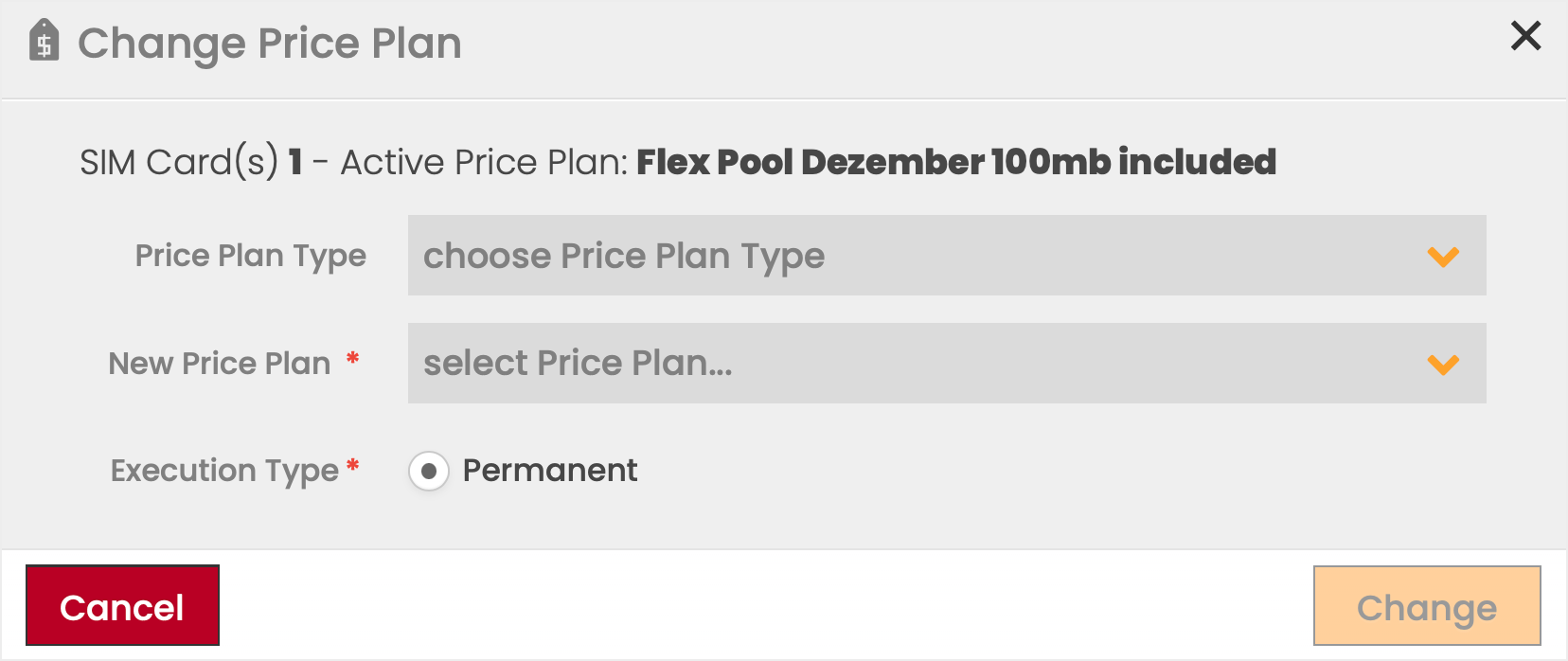
To change a Price Plan:
- Select one or multiple SIM Cards from the SIM Grid.
- Click on the Change Price Plan
 icon in the Object Functions Menu.
 - Choose a Price Plan Type.
Note: If no Price Plan Type is selected, all available Price Plans will be shown in the New Price Plan dropdown list. - Choose the New Price Plan from the available options in the dropdown list.
Note: If a Price Plan Type is selected from the Price Plan Type dropdown list, the list of available new Price Plans will be filtered to show only the Price Plans of the selected type. - Choose the Execution Type.
Note: Execution Type Temporary is only visible if available for the selected Price Plan. - Click Change to apply your selection.
Price Plan Type | Description |
|---|---|
Postpaid Individual | Postpaid Price Plans can have included pool/allowance and can also have an overage. They align with Billing Cycles and are only retired once all SIMs are removed from the Price Plan. For Individual Price Plans the consumption of each SIM Card is charged individually. |
Postpaid Flex Pool | Postpaid Price Plans can have included pool/allowance and can also have an overage. They align with Billing Cycles and are only retired once all SIMs are removed from the Price Plan. In a Flex Pool, the Total Data Volume is calculated by the amount of included data of one SIM Card multiplied by the number of SIM Cards in the Pool. At the same time, the entire Pool of SIM Cards can share the total volume. |
Postpaid Static Pool | Postpaid Price Plans can have included pool/allowance and can also have an overage. They align with Billing Cycles and are only retired once all SIMs are removed from the Price Plan. In a Static Pool, the entire Pool of SIM Cards shares the total volume of Monthly Included Data of the Home Zone. This total volume is fixed and does not depend on the number of SIM Cards in the Pool. |
Prepaid Individual | Prepaid Price Plans have a pool/allowance and duration but do not allow overage. They are independent of Billing Cycles and will expire at the end of the allowed duration or when the allowance is consumed. Prepaid Price Plans have no Monthly Recurring Charge (MRC), only the one-time activation charge. For Individual Price Plans the consumption of each SIM Card is charged individually. |
Prepaid Static Pool | Prepaid Price Plans have a pool/allowance and duration but do not allow overage. They are independent of Billing Cycles and will expire at the end of the allowed duration or when the allowance is consumed. Prepaid Price Plans have no Monthly Recurring Charge (MRC), only the one-time activation charge. In a Static Pool, the entire Pool of SIM Cards shares the total volume of Monthly Included Data of the Home Zone. This total volume is fixed and does not depend on the number of SIM Cards in the Pool. |
Network Price Plan | For Network Price Plans individual rates per Service and per Network can be defined. Note: Change to Network Price Plan is only allowed if the current Price Plan is also a Network Price Plan. |
Execution Type | Available Price Plans |
|---|---|
Permanent | All Active Price Plans assigned to the Account are available. |
Temporary (BC-Only) | Only Postpaid Price Plans assigned to the Account are available. The change of the Price Plan is only effective until the end of the Billing Cycle. |
The confirmation dialog for changing the Price Plan will indicate whether the change will be executed immediately or at the end of the Billing Cycle.
Moving between Prepaid and Postpaid Price Plans
Prepaid Price Plans have a pool/allowance and duration but do not allow overage. They are independent of Billing Cycles and will expire at the end of the allowed duration or when the allowance is consumed. Prepaid Price Plans have no Monthly Recurring Charge (MRC), only the one-time activation charge.
Postpaid Price Plans can have included pool/allowance and can also have an overage. They align with Billing Cycles and are only retired once all SIMs are removed from the Price Plan.
Considering the differences between the two Price Plan Types, moving between Pre- and Postpaid Price Plans is handled in the following way.
- Moving from Postpaid to Prepaid, the Postpaid Price Plan is considered as if the SIM was retired, i.e. the MRC is prorated and usage is charged against the Postpaid Price Plan up to the change and the Prepaid Price Plan is charged on activation or the SIM can join an existing Prepaid Pool. No usage is moved between the two Price Plans.
- Moving from Prepaid to Postpaid, the Prepaid Price Plan is left and any unused allowance is lost, unless the source Price Plan is a Pool Price Plan with other SIMs assigned. The new Postpaid Price Plan is treated as if the SIM has been activated mid Billing Cycle, i.e. the MRC is prorated. No usage is moved between the two Price Plan.
Multiple moves between Pre- and Postpaid Price Plans in a Billing Cycle
If there are multiple Postpaid Price Plans used in a Billing Cycle, the MRCs are prorated for each part of the Billing Cycle that the SIM is on a Postpaid Price Plan, regardless of the Account Rating Type.
If there are multiple Individual Prepaid Price Plans used in a Billing Cycle, each one will trigger a new one-time charge.
If there are multiple times in a Billing Cycle, when the SIM is in the same Prepaid Static Pool Price Plan and there are other SIMs in the pool at all times, the Pool will not be closed and usage is charged against the same Pool and no additional prepaid one-time charge will be raised.
Service Profile and Price Plan restrictions
To prevent SIM Price Plan changes that result in services being enabled without an appropriate Price Plan being assigned to the SIM, restrictions can be configured. For a detailed description, see the Allowed combinations of Price Plans and Service Profiles section above.
If according to the configured restrictions a Price Plan change is not allowed, the User will be presented with an error message.
In order to change a Price Plan from one with Voice services to one without Voice services, the Service Profile must first be changed to one without Voice services.
Manage Assignment to Simple Customer
In CMP Simple Customers can be created to help efficiently organize the constituents of Enterprise Accounts, such as departments, or teams. Simple Customers can be created as described in the Customers section of the user manual.
Note that the Manage Assignment to Simple Customer option is only available to Account Users.
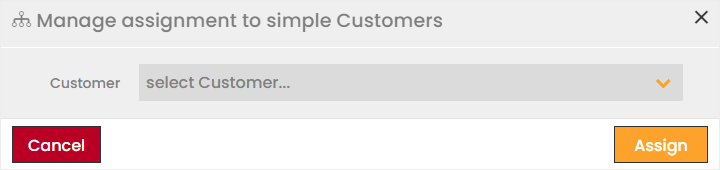
To assign a SIM Card to a Simple Customer:
- Select one or multiple SIM Cards from the SIM Grid.
- Click on the Manage Assignment to Simple Customer
 icon in the Object Functions Menu.
 - Select a Customer from the available options in the dropdown list.
- Click Assign to apply your selection.
Manage Assignment to SIM Group
In CMP SIM Groups can be created to help efficiently organize the constituents of Simple Customers, such as departments, or teams. SIM Groups can be created as described in the SIM Groups section of the user manual.
Note that the Manage Assignment to SIM Groups option is only available to Customer Users.
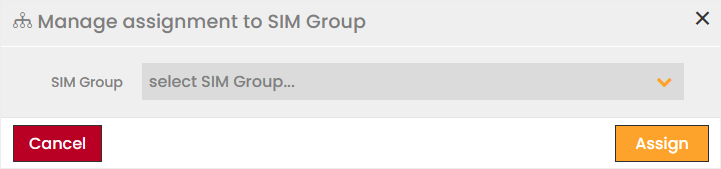
To assign SIM Cards to a SIM Group:
- Select one or multiple SIM Cards from the SIM Grid.
- Click on the Manage Assignment to SIM Group
 icon in the Object Functions Menu
 - Select a SIM Group from the available options in the dropdown list.
- Click Assign to apply your selection.
Change Billing Status
The agreement between Customer and Provider applies here as it does when the Price Plan is changed. Depending on the contract with the Operators, Users can change the SIM Card Billing Status.
To change the Billing Status of SIM Cards:
- Select one or multiple SIM Cards from the SIM Grid.
- Click on the Billing Status
 icon in the Object Functions Menu.
 - Select the desired Billing Status from the available options.
- Choose an Execution Type.
Note: Execution Type Temporary (BC-ONLY) is only applicable if the target status is Suspended. - Click Change to apply your selection.
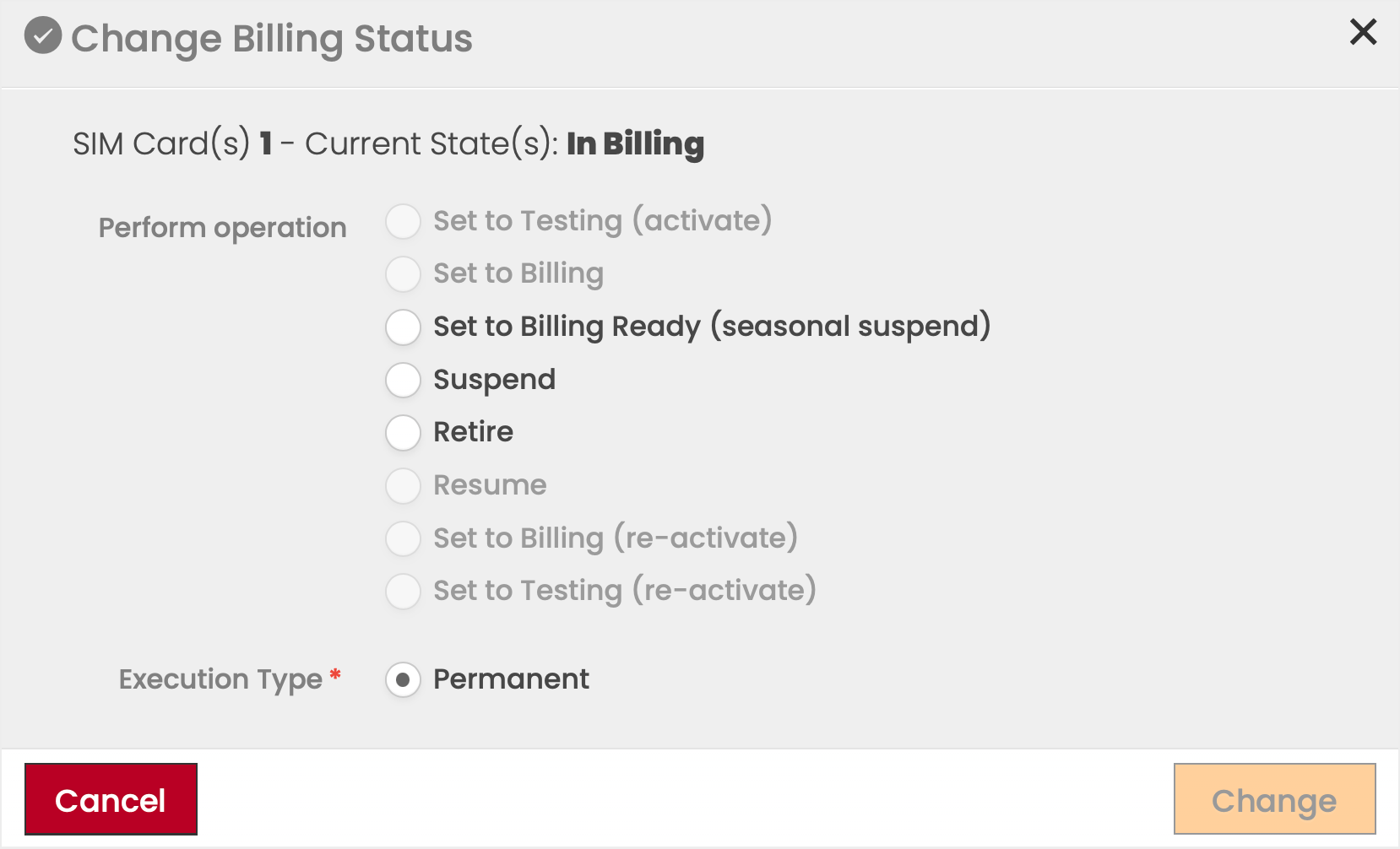
If the current status is: | Select: | The status transitions to: |
Customer Inventory | Set to Testing (activate) | In Testing |
Retire | Retired | |
In Testing | Set to Billing | In Billing |
Retire | Retired | |
Billing Ready | Resume | In Billing |
Retire | Retired | |
In Billing | Set to Billing Ready (seasonal suspend) | Billing Ready |
Suspend | Suspended | |
Retire | Retired | |
Suspended | Retire | Retired |
Resume | In Billing | |
Retired | Set to Billing (re-activate) | In Billing |
Set to Testing (re-activate) | In Testing |
Remark:
- In case more than one SIM Card is selected, the Billing Status Change dialog shows only the transitions enabled, that are applicable for ALL selected SIM Cards.
- This might lead to a situation where no common transition (operation) is available at all. Please reduce the number of SIM Cards (eventually to one) to reduce the number of different starting states in order to enable the required transition for the selected SIM Card(s).
The following diagram depicts the possible manual transition (in green color) available for SIM Cards. Examples:
- Change the Billing Status of a SIM Card from Customer Inventory to In Testing by performing the 'activate'-operation ('Set to Testing'; transition 1 in the diagram below)
- Re-activate a SIM Card from Retired into In-Billing (transition 7 in the diagram)
Red lines mark transitions that are triggered automatically by CMP when specific events (e.g. test quota expired or SIM assigned to an Account) occurred.
Processing Status
As the change of the Billing Status is an asynchronous process, the Processing Status (PS) column informs the User about the status of the process:
- indicates that the change process is ongoing, and
- indicates that the change process has failed.
- In case there is no currently ongoing or failed process, the field is left empty.
More information is accessible on the Pending Changes tab, which may be easily accessed by clicking on the icon in the PS column.
SIM Suspend Reason
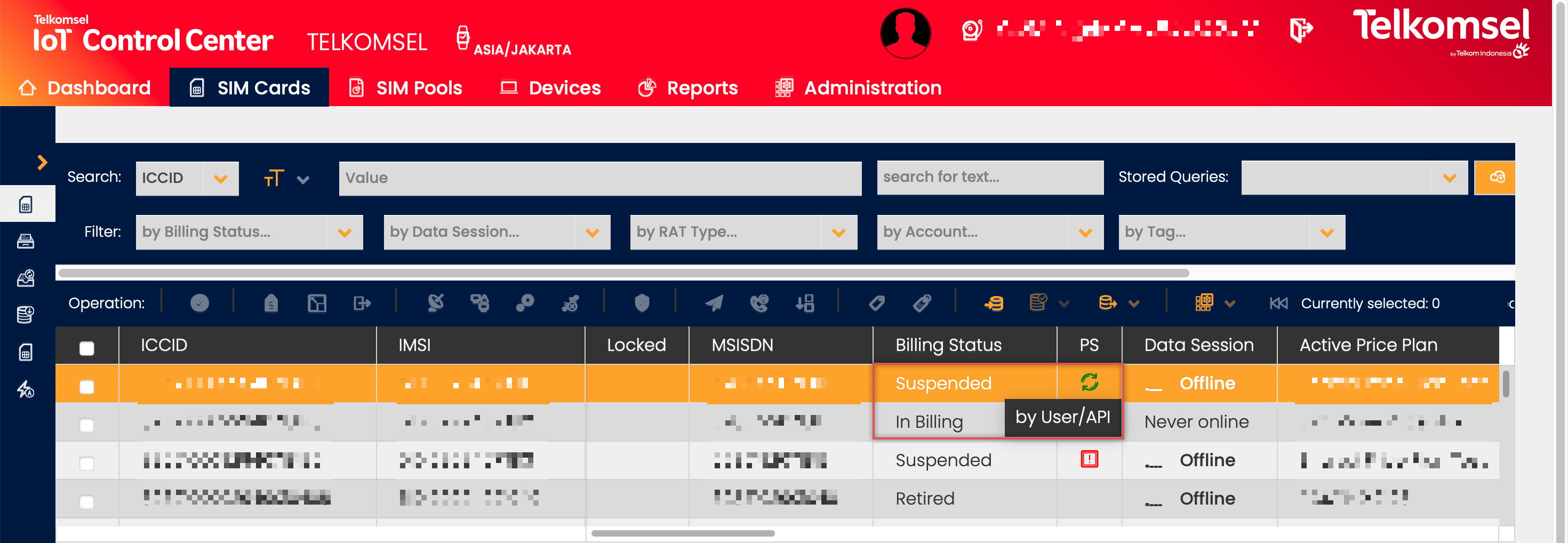
The Suspend Reason of each SIM Card in Billing Status Suspended is visible on the Enterprise Portal. Enterprise Users are informed as to why a SIM Card has been suspended by a tooltip that appears while hovering over the SIM Card's Billing Status and also in the SIM Details.
Soft Suspend
Soft suspension allows to suspend SIM Cards without restricting network access. A soft suspended SIM is still able to register to the Network, i.e. usage is not blocked, but billing is stopped immediately.
To soft (seasonal) suspend a SIM Card it has to be transitioned to Billing Status BILLING READY.
There is no restriction on the availability of suspend types, therefore all Accounts can have both the network and soft suspend option at the same time. However, a suspended SIM Card cannot be moved to another suspend type directly, it has to be resumed first.
The Suspension Period defined for the Account also applies for soft suspended SIMs, after this period SIM Cards will be automatically resumed.
Soft suspended SIM Cards will be auto-resumed either
- on first usage or
- when the (configured) suspension period expired.
Suspend Lock Condition
Transition to Billing Status Suspended is only allowed if there was no other suspension during the preconfigured time span of X days (e.g. 365), which indicates how long the time period needs to be between two manual suspensions. If the parameter is set to 0, there is no limitation to the number of suspensions.
Note: X is configurable on CSP level at installation. The configuration is not possible via GUI.
CMP stores a timestamp of when the last transition to Billing Status Suspended happened and will reject manual transitions into Suspended if the time passed since the last suspension is less than or equals the preconfigured X days.
Note: Forced or automatic transitions will overrule the related conditions and will still be performed.
If a transition is rejected, the User will be notified with the following error message.

SIM Retirement
As the retirement of a SIM Card only happens at the end of the day (i.e. at midnight). As a consequence, the Billing Status of the SIM in the SIM Grid will not immediately change to Retired after the retirement has been initiated.
An icon  in the Billing Status column will indicate that retirement has been indicated for the selected SIM Card. Any further attempts to retire the SIM will be blocked and the User will be presented with an error message.
Proration disabled at last moth
CMP allows disabling pro-ration at the first and last month. Disabling pro-ration at last month is triggered once the SIM has moved into Billing Status Retired. The SIM Card is deactivated (i.e. Network Status is set to INACTIVE) immediately when the SIM is retired, however, the CMP charges the MRC and grants the included allowance until the end of the Billing Cycle to keep the full allowance.
In case a such SIM Card is retired, it is indicated by an informational icon in the SIM Grid.
MSISDN Retire Behavior
MSISDN Retire Behavior can be configured on CSP-level at installation and cannot be changed later via GUI.
In case MSISDN Retire Behavior is configured Release MSISDN when a SIM Card is retired its MSISDN will be replaced (overwritten) by a dummy MSISDN. Retired SIM Cards with a dummy MSISDN assigned will be displayed without an MSISDN in the SIM Grid.
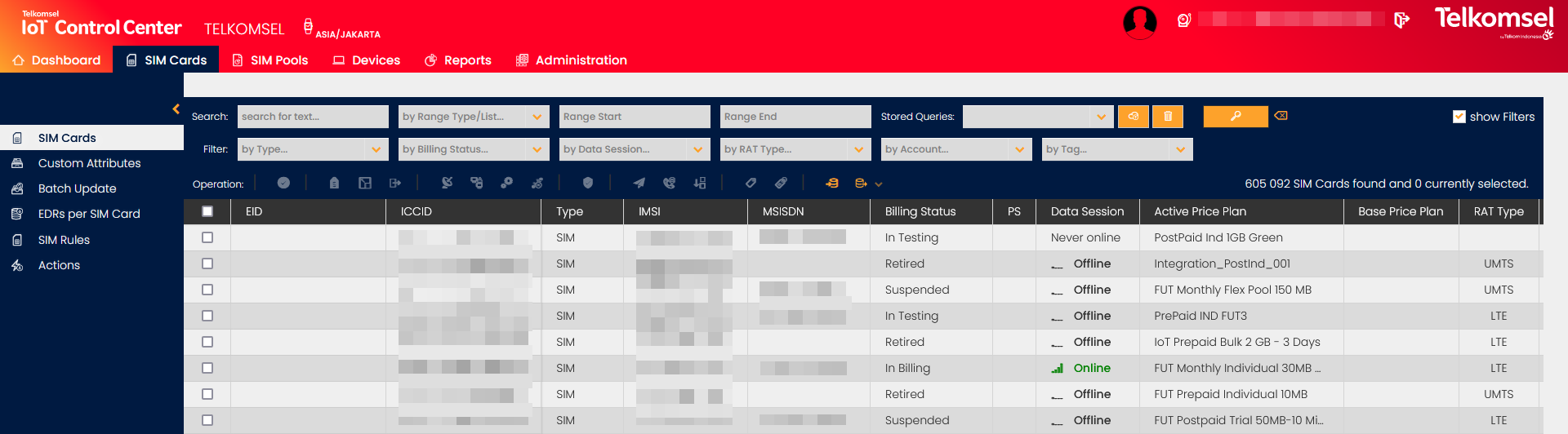
When a Retired SIM Card is re-activated, it will get the next free dialable MSISDN and NOT the same as it has released.
Change APN Group
By changing the assigned APN to a SIM Card, the behavior of a SIM Card can be fundamentally changed. APNs can serve as a control for access to private networks or for a specific IP address allocation strategy.
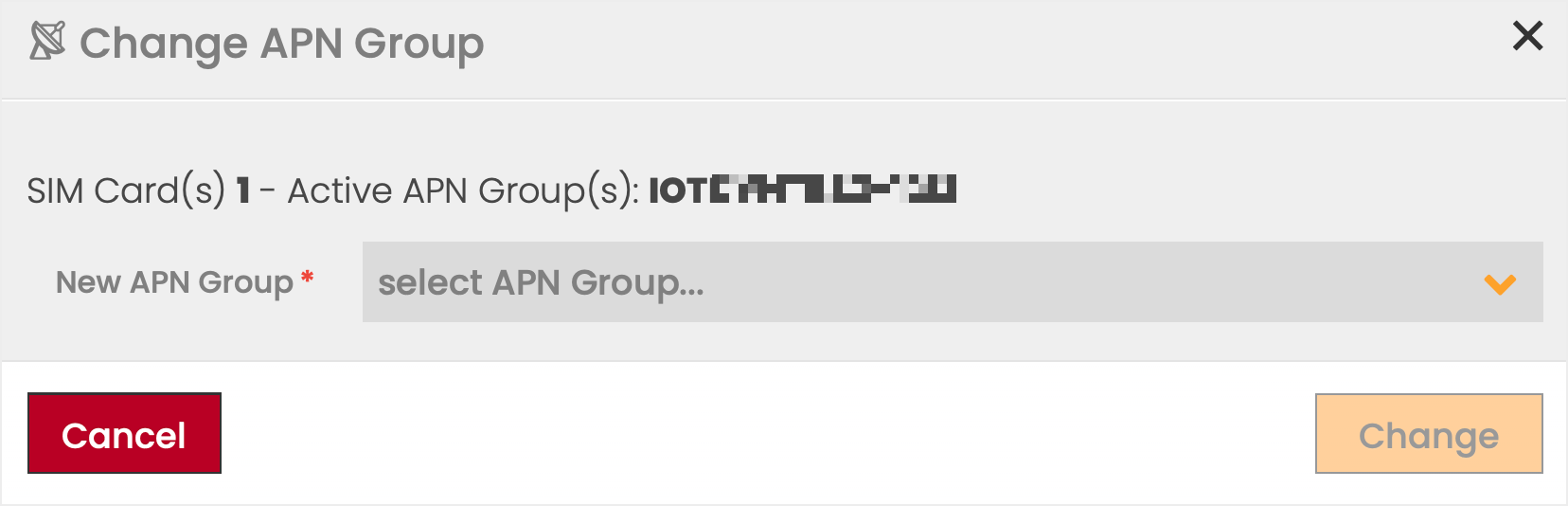
To select an APN Group:
- Select one or multiple SIM Cards from the SIM Grid.
- Click on the Change APN Group
 icon in the Object Functions Menu.
 - Select an APN Group from the available options in the dropdown list.
- Click Change to apply your selection.
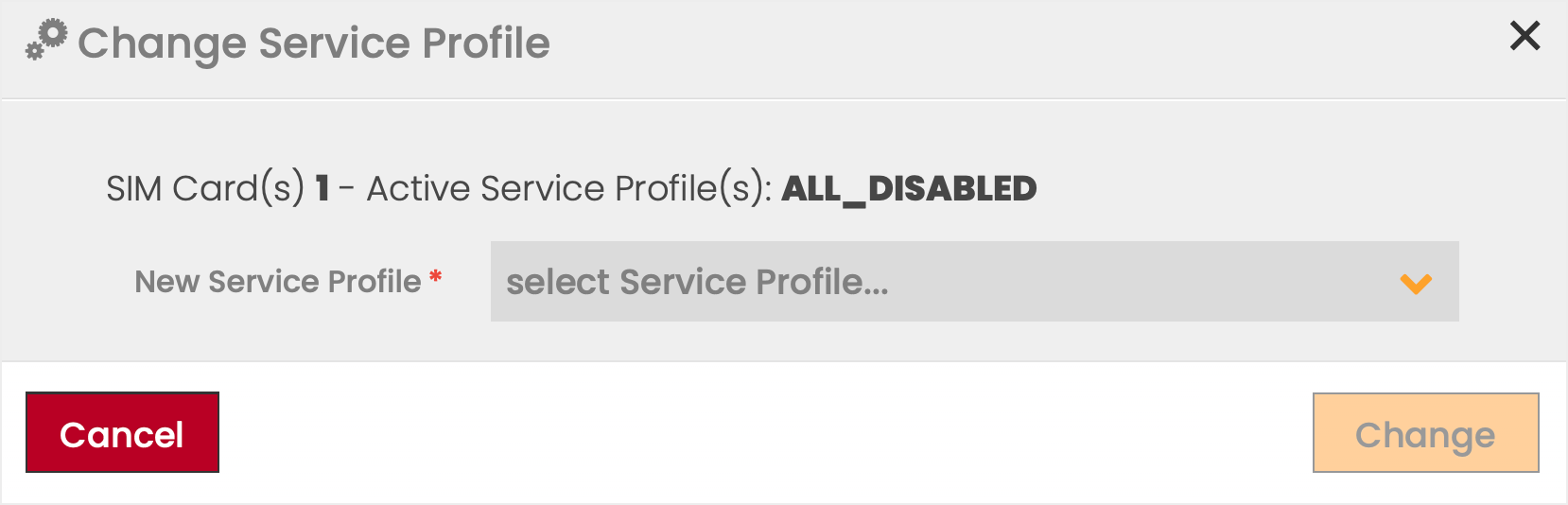
Change Service Profile
Every APN has a list of services, which have been agreed upon with a Network Service Provider. These services can then be allocated to SIM Cards to define their capabilities within the mobile network. The standard services are data, SMS, and voice is an optional service. For SMS and voice, there is also a difference between outgoing (MO) and incoming (MT) services. Data services are distinguished primarily in 2G, 3G, 4G, and 5G.
To simplify the allocation of APN services, the CMP offers ready-made Service Profiles to choose from.
To change the Service Profile:
- Select one or multiple SIM Cards from the SIM Grid.
- Click on the Change Service Profile
 icon in the Object Functions Menu.
 - Select a Service Profile from the available options in the dropdown list.
- Click Change to apply your selection.
Service Profile and Price Plan restrictions
To prevent SIM Service Profile changes that result in services being enabled without an appropriate Price Plan being assigned to the SIM, restrictions can be configured. For a detailed description, see the Allowed combinations of Price Plans and Service Profiles section above.
If according to the configured restrictions, a Service Profile change is not allowed, the User will be presented with an error message.
In order to change a Service Profile from one without Voice services to one with Voice services, the Price Plan has to be changed first to one with appropriate Voice charging.
Change Static IP Address(es)
Note:
The Change Static IP Address(es) option is only available for SIM Cards that have an APN with Static IP Allocation assigned.
To change the Static IP Address assigned to the SIM Card:
- Select one or multiple SIM Cards from the SIM Grid.
- Click on the Change Static IP Address(es)
 icon in the Object Functions Menu.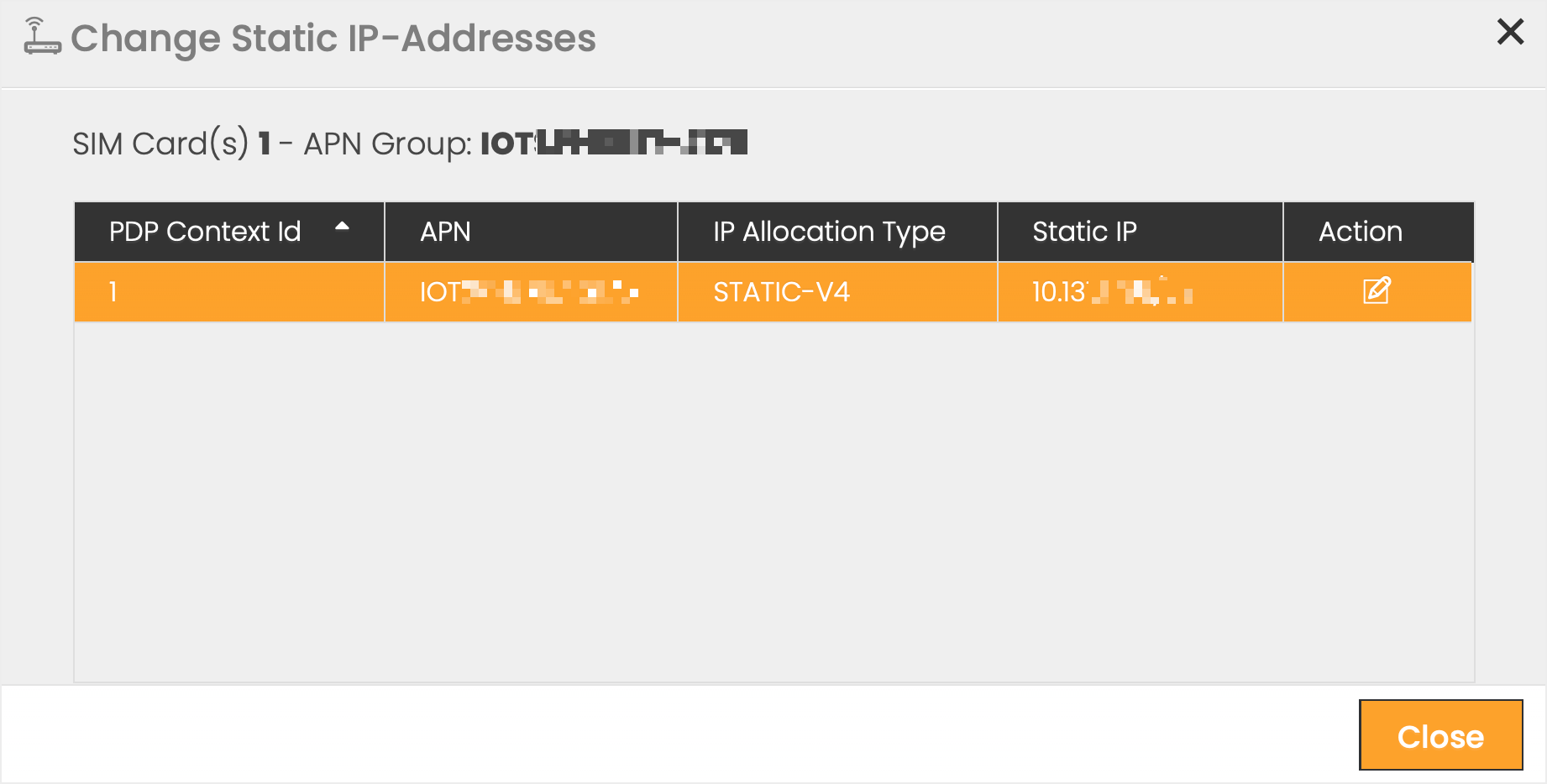
- Click the Edit icon in the Action column.
- Select a New Static IP from the available options in the dropdown list.
- Click Save to apply your selection.
- Click Close in the Change Static IP-Addresses dialog to return to the SIM Grid.
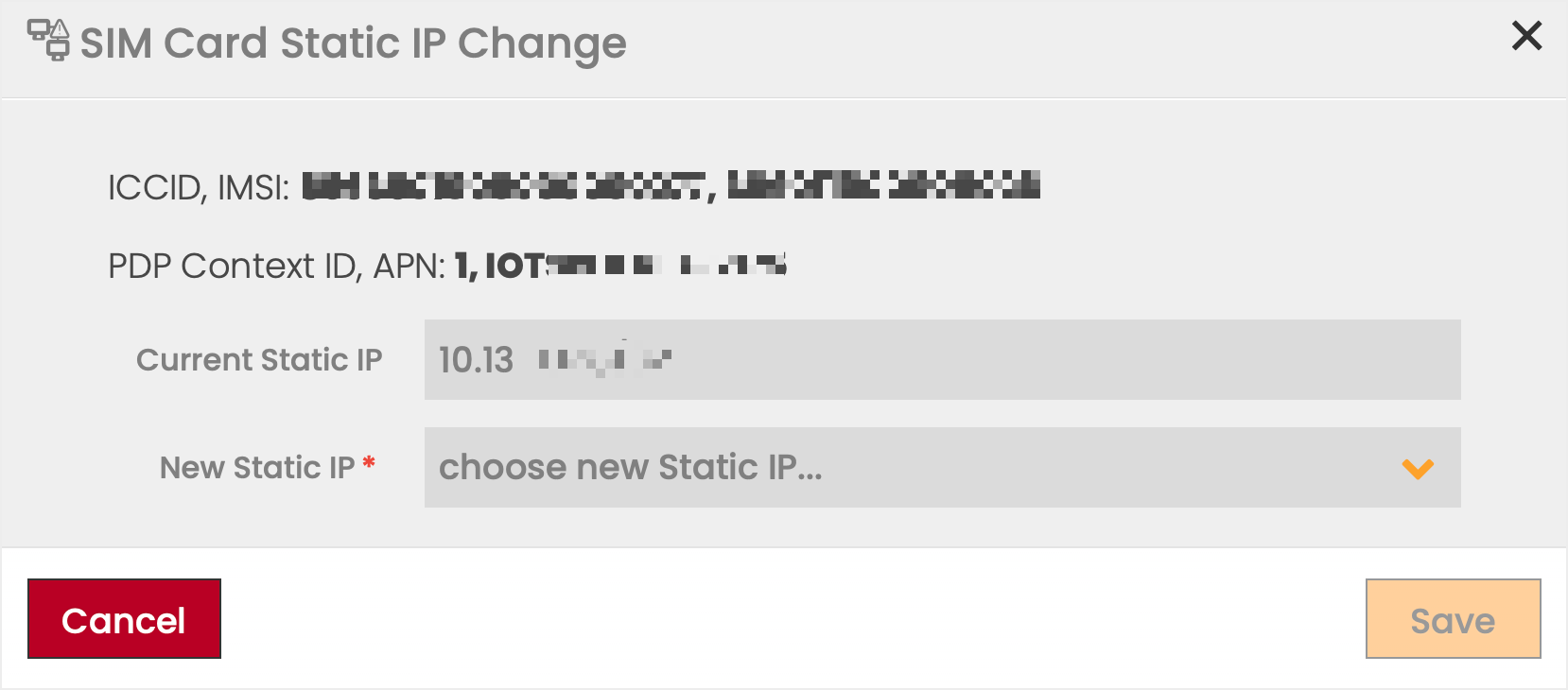
The successful change of a Static IP is immediately applied to the SIM and a confirmation message appears.
Send an SMS
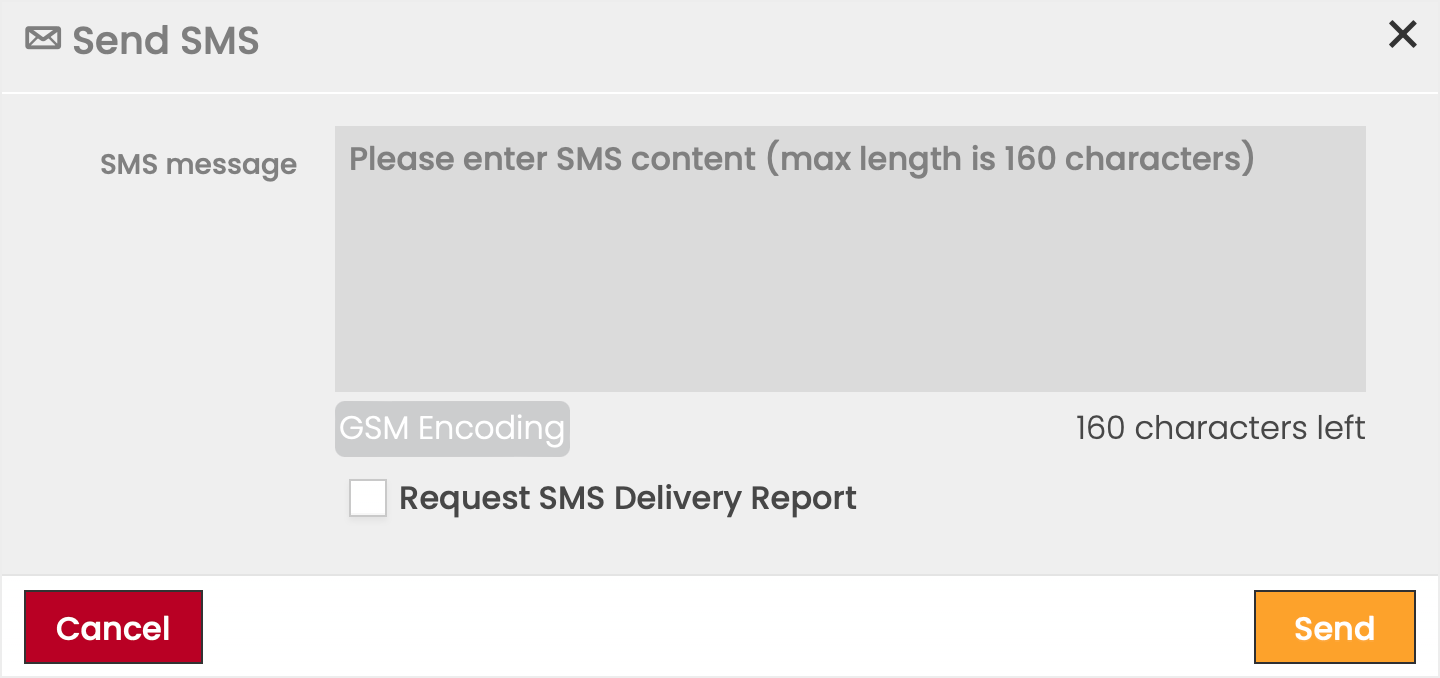
The Send SMS feature allows a user to send an SMS to one or more selected SIM Cards. The SMS can only be sent if the intended SIM has SMS MT services enabled and there is no Security Profile that would block the CMP as an SMS source.
To send an SMS:
- Select one or multiple SIM Cards from the SIM Grid.
- Click on the Send SMS
 icon in the Object Functions Menu.
 - Enter the SMS message to be sent.
Note:
By default GSM Encoding is applied. In case the message text contains at least one non-GSM7 character the encoding is changed to Unicode. The applied encoding type is displayed below the text box.
The maximum length of the message depends on the encoding type. In GSM Encoding it is 160 and in Unicode Encoding it is 70 characters. - Click the Request SMS Delivery Report checkbox, if you wish to receive an SMS Delivery Report. Otherwise, leave it empty.
Note: In case multiple SIM Cards are selected for sending the same SMS, all SMS will have the Request SMS Delivery Report flag set the same way. - When ready to send the message, click on Save (or Cancel to exit without sending).
Failed SMS send
Sending an SMS can fail if the intended SIM doesn't have SMS MT services enabled or there is a Security Profile that blocks the CMP as an SMS source. In case of failure, depending on the source of the problem, enabling SMS MT services and/or changing the Security Profile can solve the problem.
Note: The request to send an SMS will be accepted even in case the sending will fail when the requirements of a successful SMS send are not met, because SMS are processed asynchronously.
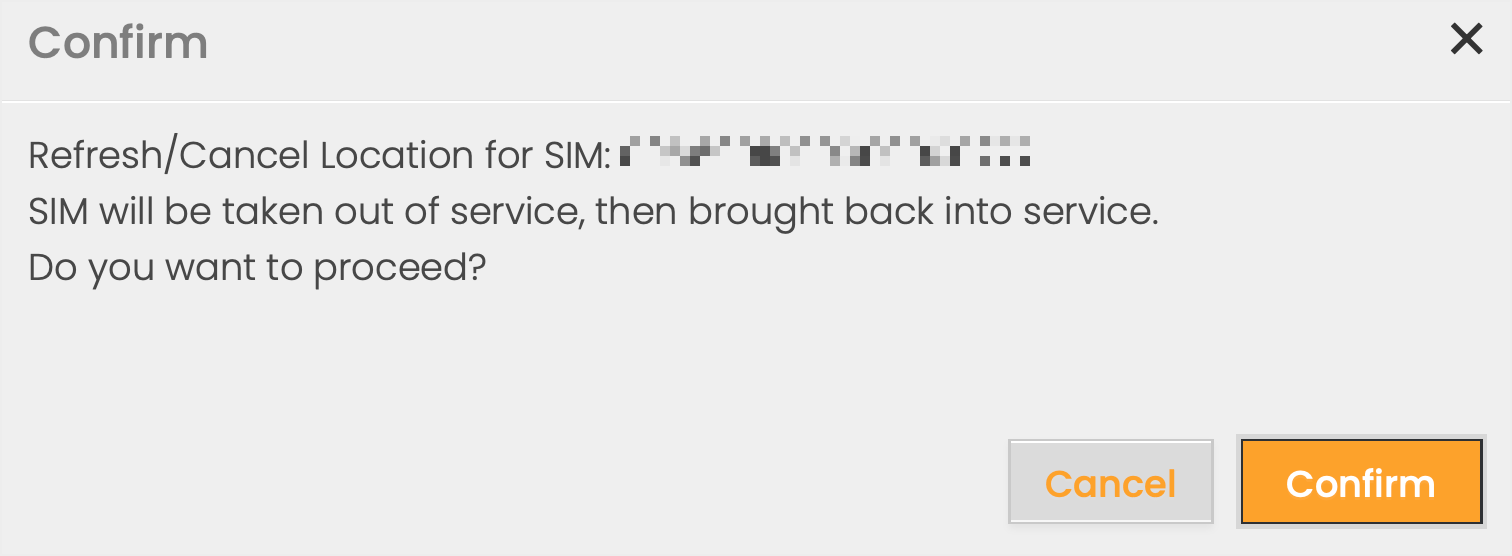
Cancel Location
Cancel Location feature enables Enterprise Account Users to send a Cancel Location request to the core network.
Note:
It is only possible to detach and re-attach one SIM Card at a time.
The network only responds whether the request has been accepted or not, i.e. there is no indication from the network that the SIM was successfully deregistered. If the request is accepted, it is assumed that the Cancel Location request was successful. When the SIM is reconnected to the network, the original configuration settings are retained.
If the request fails, the User is presented with a failed message that includes the reason for failure (if returned by the network).
To refresh/cancel location for SIM:
- Select a SIM Card from the SIM Grid.
- Click on the Cancel Location
 icon in the Object Functions Menu.
 - Confirm the action.
Change SIM Card Account
Note that SIM Move is only available in Account context.
CMP allows Users to move SIM Cards between (Parent) Accounts with no or minimal service interruptions. This feature supports business processes such as
- incorrect SIM assignment to an Account,
- move of SIMs from Demo Accounts to Commercial Accounts,
- customer acquisitions or mergers, and
- customer splits/spin-offs.
CSP Users are allowed to move SIMs to any active Account within the CMP; however, Account Users have a restricted list of Target Accounts and are allowed to move SIMs to active Accounts under the same Company as the current Account. Both Parent and Sub-Accounts are included in the process.
Generally, SIM Cards can only be moved between active Accounts; however, CSP Users are also able to move SIM Cards from suspended Accounts to active Accounts.
Note:
Moving SIM Cards between (Parent) Accounts is also possible as a batch operation. For more details on how to carry out batch operations, see the Batch Update section.
ICCID;ACCOUNT_NUMBER
8966901000000000046;999230001228
To change the SIM Account:
- Select one or more SIM Cards from the SIM Grid.
- Click on the Change Account
 icon in the Object Functions Menu.
 - Select the Target Company.
Note that in the case of an Account User, the Company of the current Account is preselected. - Select the Target Account.
Note that only Accounts created under the selected Target Company are available for selection in the dropdown list.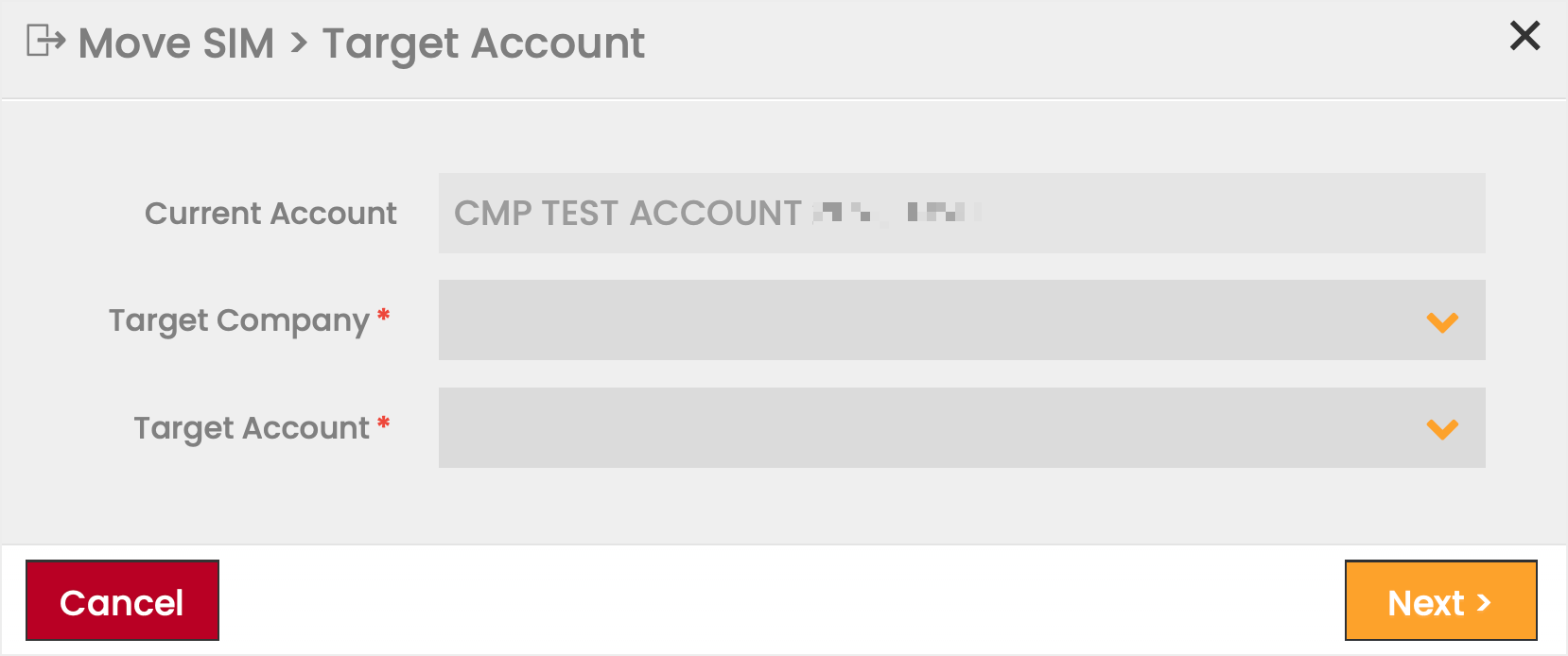
- Click Next.
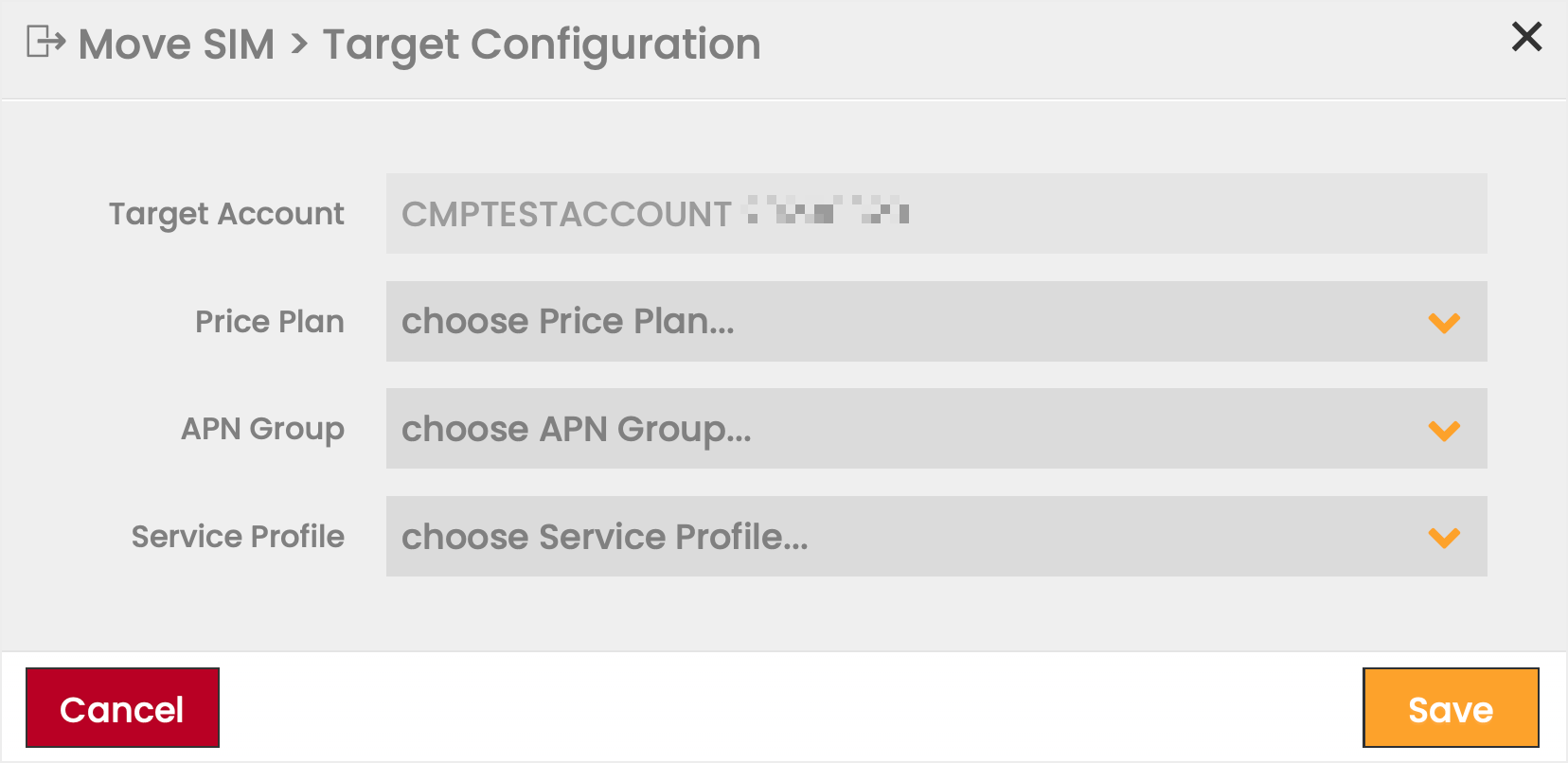
- Specify the Target Configuration of Price Plan, APN Group, and Service Profile.
Note:
Only resources available for the selected Account are available for selection.
When SIM Cards are moved to a new Account, they are moved with the same Billing Status as what they had at their old Account. - Click Save to confirm the SIM Move.
Note:
Available Price Plans, APN Groups, and Service Profiles are assigned to the Account outside of the Enterprise Portal.
The SIM Move is completed immediately, which means that the SIM Cards are moved to the new Account instantly. All charges generated for the SIM Card up to the SIM Move are charged against the Source (old) Account and in the Target Account the new Subscription is created, activation charges are suppressed, and any Price Plan allowance of the old Subscription is lost (e.g., Prepaid Allowance). If the SIM is moved out of an Account on the same day that it is assigned to the Account by the PO process, the old Account subscription will be deleted and there will be no charges against the old Account.
Change Roaming Profiles
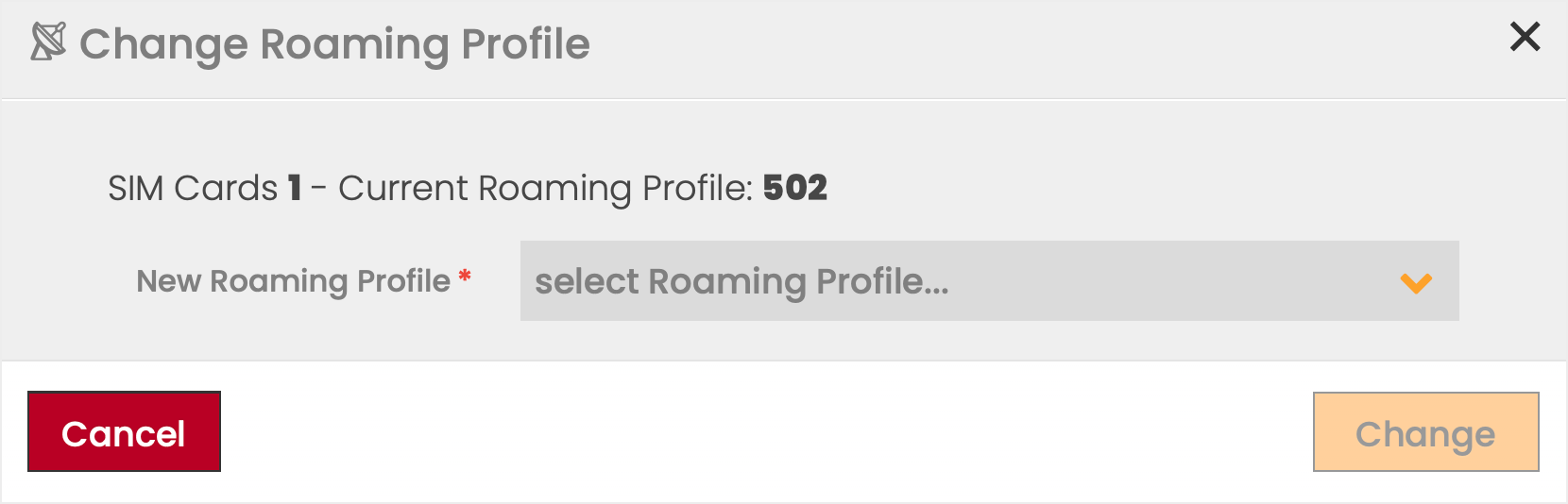
Enterprise Account Users may change the assigned Roaming Profiles for one or multiple SIM Cards. Available Roaming Profiles are assigned by the Service Provider, or by the Enterprise User under the Roaming module.
Changing the assigned Roaming Profile is only possible for SIM Cards that have either a Network Group Price Plan or a Zone Price Plan with Shared Roaming Profile assigned. In case the SIM Card is on a Zone Price Plan with a Dedicated Roaming Profile, the direct change is not allowed and the User will be presented with an error message. For such SIM Cards, the Roaming Profile is automatically changed when the SIM Card's Price Plan is changed.
To change the Roaming Profile:
- Click the Change Roaming Profiles
 icon in the Object Functions Menu.
 - Select a Roaming Profile from the available options in the dropdown list.
- Click Change to apply your selection.
Assign or Remove a Tag
Tags are visual clues, which offer an additional way to organize and locate your SIM Cards.
For a detailed description of the creation and usage of Tags see the Understanding Tags section of the manual.
To assign a Tag:
- Select one or multiple SIM Cards from the SIM Grid.
- Click on the Assign Tag
 icon in the Object Functions Menu.
 - Select a Tag from the available options in the dropdown list.
- Click Assign to apply your selection.
To remove a Tag:
- Select one or multiple SIM Cards from the SIM Grid.
- Click on the Remove Tag
 icon in the Object Functions Menu.
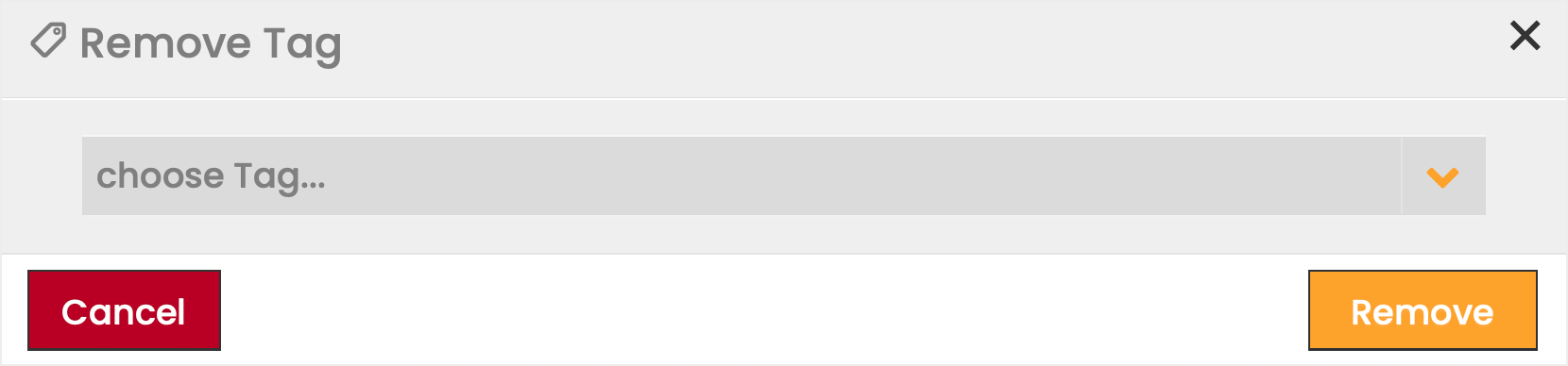
 - Select a Tag to be removed from the available options in the dropdown list.
- Click Save to apply your selection.
SIM Grid - Export
CMP provides Users multiple options to export the content of the SIM Grid either into a CSV or an XLS file, which can subsequently be used in Excel or loaded into other applications. Users have the option to export either all SIM Cards that match the defined filter criteria or only a selection of them. Depending on the context level, different export options can be available.
The export files can also be used as input for the Batch Update function. For details see the Batch Update section of the user manual.
Export Selected SIM Cards
To export selected SIM Cards:
- Select SIM Cards from the SIM Grid.
- Click on the Export Selected
 icon.
icon. - Select the file format (CSV
 or XLS
  ) in which the content will be exported.
 - Click Download to finalize the process.
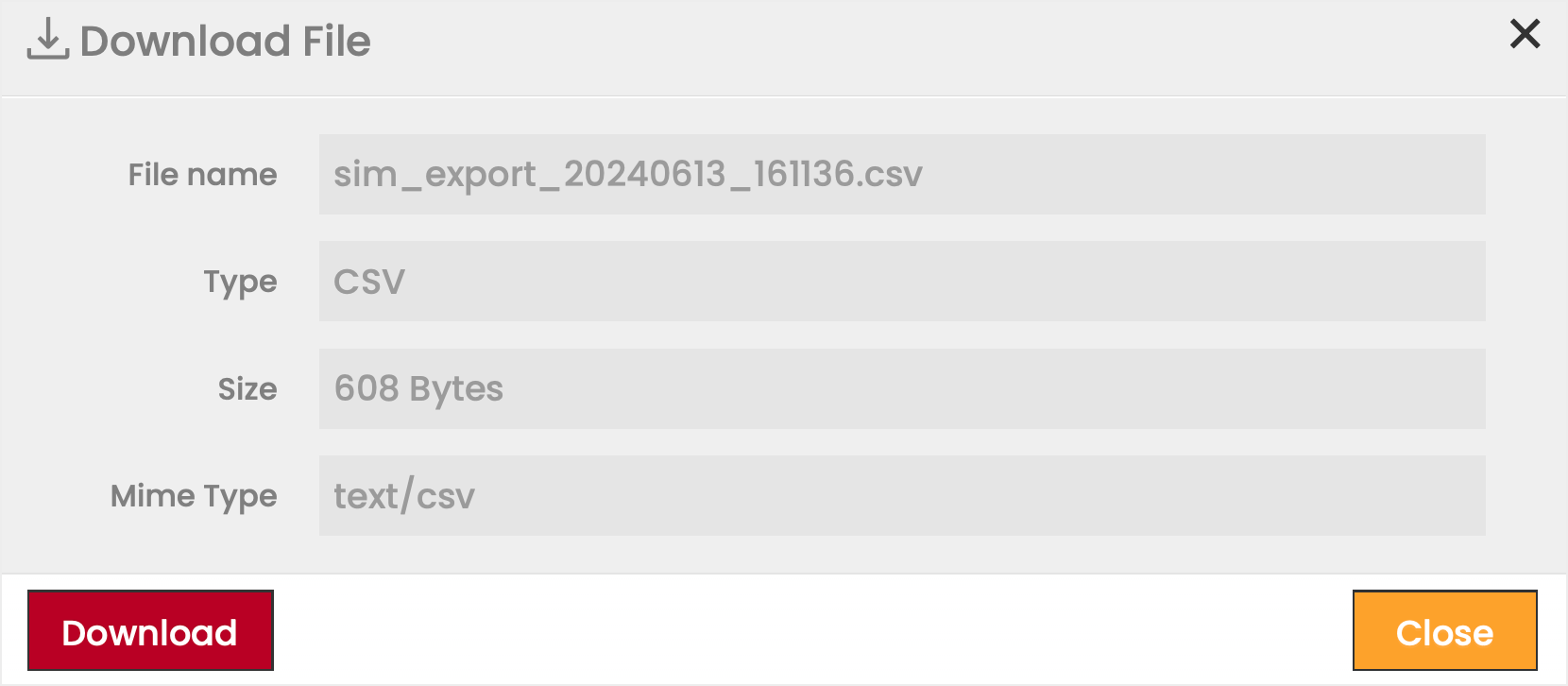
Export All SIM Cards
SIM Cards can only be exported page by page from the SIM Grid when exporting all SIM Cards that match the current filter criteria in CSP context. The same option is available in Account context as well.
To export all SIM Cards matching the current filter criteria page-by-page:
- If necessary, filter the content of the SIM Grid.
- Click on the Export All matching current filter criteria
 icon.
icon. - Select the file format (CSV or XLS ) in which the content will be exported.
- Click Export current Page to confirm the export.
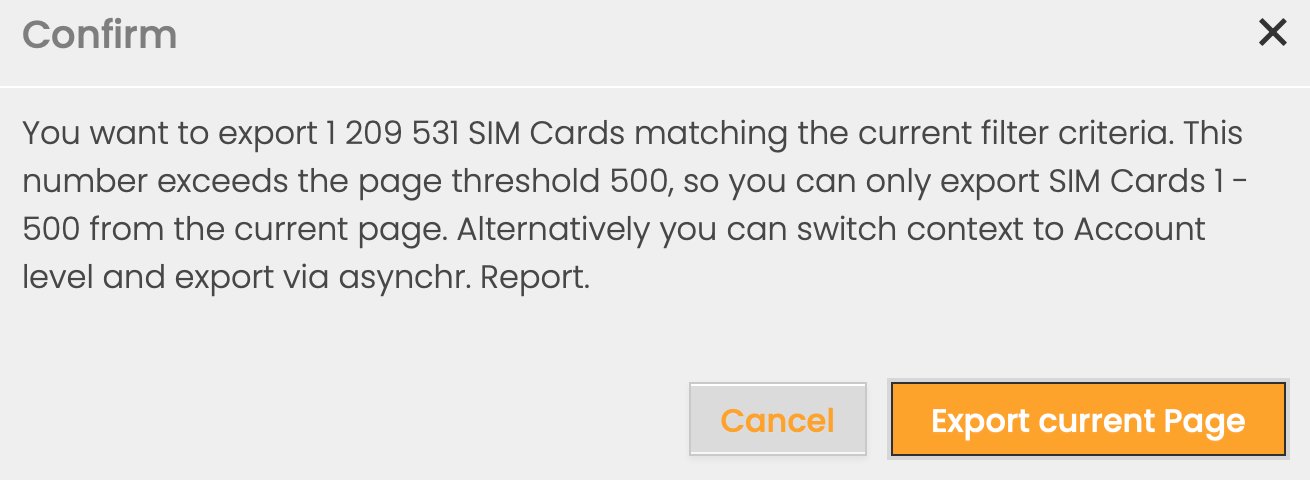
- Click Download to finalize the process.
In order to support exporting a large number of SIM Cards, CMP enables Users to trigger the creation of an asynchronous report based on the current search criteria when exporting the content of the SIM Grid. The created report is sent to the email address of the User and is also available for download in the Reports module of the Enterprise Portal.
Note:
- This option is only available in Account context.
- The Export all via Report option is only available in case the number of SIM Cards matching the current filter criteria exceeds the page threshold of 500.
To export all SIM Cards via report:
- If necessary, filter the content of the SIM Grid.
- Click on the Export All matching current filter criteria icon.
- Select the file format CSV for the export.
Note that the via report option is only supported for the CSV file format. - Select the Export all via Report option.
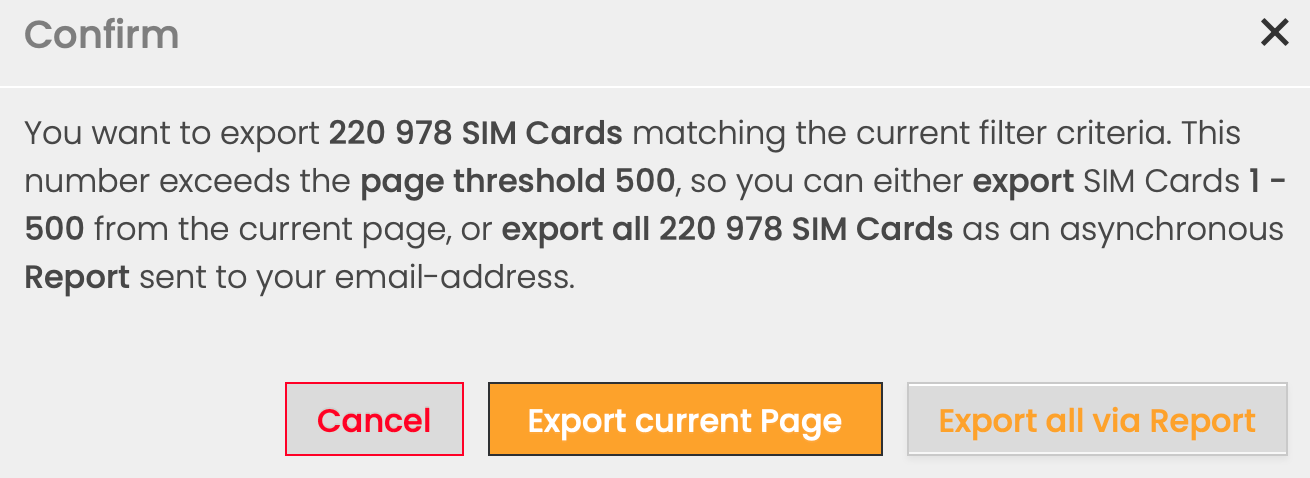
General Description - SIM Export Fields
The following table lists all fields available for export and marks as well the ones that can be changed via Batch Upload functionality.
Field | Description | Changeable via Batch Upload | Comment |
|---|---|---|---|
EID | Unique identifier of the eSIM. By clicking on the EID, the grid will search and show all the eSIM Profiles linked to the EID. | no | The EID column is only populated if the ICCID is of Type 'eSIM Profile'. |
ICCID | Integrated Circuit Card Identifier, which is unique to each SIM Card. | no (SIM Card identifier) | Note: The values in these fields are the unique identifier of the SIM Cards to be changed via Batch Upload. Correspondingly the CSV column has to be bound to the Header 'ICCID' before data upload, although the value cannot be changed |
Type | Type of the SIM. Available values are: 'SIM', 'eSIM', 'eSIM Profile'. | no | Only available if the eSIM feature is enabled on the CMP instance. |
IMSI | Mobile Station International Subscriber Directory Number | no | |
MSISDN | International Mobile Subscriber Identity | no | |
Billing Status | Billing Status of the SIM at the time of file creation. | YES | For Batch Upload please bind to 'SIM Billing Status' Header For Billing Status, internal ENUM values (e.g. IN-BILLINGm SUSPENDED) are used in the SIM Grid export, which can be used for Batch Updates. |
Data Session | Indicates whether a SIM is in an active data session at the time of file creation | no | |
Active Price Plan | The Price Plan assigned to the SIM at the time of file creation. | YES | For Batch Upload please bind to 'Price Plan' Header |
Base Price Plan | The Base Price Plan is the permanent Price Plan assigned to the SIM and the Price Plan the SIM will move back to at the end of the Billing Cycle. | no | |
Usage Limit Override | Defines the SIM behavior, when the SIM reaches the monthly data limit, which is defined at the Platform. | YES | For Batch Upload please bind to 'Usage Limit Override' Header For Usage Limit Override, internal ENUM values (DISABLED, ENABLED) are used in the SIM Grid export, which can be used for Batch Updates. Note that the Usage Limit Override field is only available in the export file in case the related feature is enabled on the CMP instance. |
Prepaid Overage Enabled | Defines whether Prepaid Overage is enabled for the SIM Card. | YES | For Batch Upload please bind to 'Prepaid Overage Enabled' Header Prepaid Overage is only applicable to SIM Cards that have a Prepaid Price Plan assigned. For Prepaid Overage Enabled, internal ENUM values (TRUE, FALSE) are used in the SIM Grid export, which can be used for Batch Updates. Note that the Prepaid Overage Enabled field is only available in the export file in case the related feature is enabled on the CMP instance. |
RAT Type | RAT Type defines the physical connection method to a wireless communication network. | no | |
Data Volume | The cumulative volume of all completed data sessions during the current Billing Cycle at the time of file creation | no | |
SMS MO Count | The number of SMS messages sent by the SIM's device during the current Billing Cycle | no | |
SMS MT Count | The number of SMS messages received by the SIM's device during the current Billing Cycle | no | |
Voice MO Duration | The duration of Voice MO (i.e. mobile originated) calls during the current Billing Cycle | no | |
Voice MT Duration | The duration of Voice MT (i.e. mobile terminated) calls during the current Billing Cycle | no | |
Country (code) | The name and ISO code of the Country in which the last recorded data or SMS session took place. | no | |
Assignment/ | Date when SIM was assigned to the Account or activated (moved automatically during Account assignment or later manually to In Testing or In Billing) | no | Date is displayed in the Time Zone of the CMP instance (UTC by default) |
Account | The Account to which the SIM is assigned. | YES | For Batch Upload please bind to 'Group' Header Note: The Batch Upload function allows to assign a SIM to another SIM Group belonging to the respective Account, Moving to another Account or Sub-Account is not supported by this function. |
Customer | The Customer to which the SIM is assigned. | no | The field is only filled in case the SIM Card is assigned to a Customer. Note that the Customer field is only available in case the SIM Grid export is created in Account context. |
Device | Device assigned to the SIM | no | |
Roaming Profile | Roaming Profile assigned to the SIM, which defines which networks the SIM is allowed to use | YES | For Batch Upload please bind to 'Roaming Profile' Header |
APN Group | APN Group assigned to the SIM Card | YES | For Batch Upload please bind to 'APN Group' Header |
APN & Static IP*1 | Access Point Name(s) and possible Static IP Address(es) assigned to the SIM Card | no | |
Data Session IMEI | IMEI used on the last data session of the SIM Card | no | |
Service Profile | Service Profile assigned to the SIM defining the list of services available for the SIM (e.g. 2G or 4G data, SMS MO) | YES | For Batch Upload please bind to 'SIM Service Profile' Header |
SIMaS Username*3 | SIM Authentication Service (SIMaS) username. | YES | For Batch Upload please bind to 'SIMaS Username' Header |
SIMaS Password*3 | SIM Authentication Service (SIMaS) password. | YES | For Batch Upload please bind to 'SIMaS Password' Header. In order to ensure security, SIMaS Password is not included in the export; however, together with SIMaS Usernames, Passwords can be imported into CMP using the Batch Update capability. Any existing Username and Password values will be overwritten by the import. |
Custom Attribute name x*2 | The value of the custom Attribute for the SIM Card | YES | For Batch Upload please bind to '(Custom Attribute) {Custom Attribute name x}' Header |
*1: The header and information displayed in this column may differ based on the configuration of the CMP instance. For a detailed description see the APN Information section of this page.
*3: The Batch file content is processed according to the table below.
Username in Batch file | Password in Batch file | Action in Postgres and Redis |
|---|---|---|
VALUE | VALUE | Update Username and Password |
VALUE | NULL | Reset to First Use |
VALUE | Field/Column Not Present | Update Username |
NULL | VALUE | Update Password if credentials already present, otherwise ignore |
NULL | NULL | Reset to First Use |
NULL | Field/Column Not Present | No Action / Ignore |
Field/Column Not Present | VALUE | Update Password if credentials already present, otherwise ignore |
Field/Column Not Present | NULL | Reset to First Use |